FAQ and Troubleshooting
Deploying a Web API with providers depending on native DLLs.
Some providers, for example the MIKECore and MCLite providers, are depending on native (C++) DLLs. These native DLLs are typically built for a 64-bit environment only, so to configure a Web API with these type of providers hosted in IIS, you must run IIS in 64-bit mode.
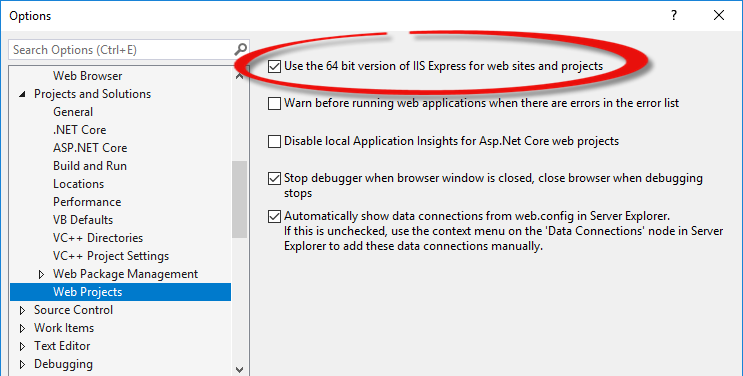
To configure this within Visual Studio, select the 64 bit version of IIS Express in Tools -> Options -> Projects and Solutions -> Web Projects:
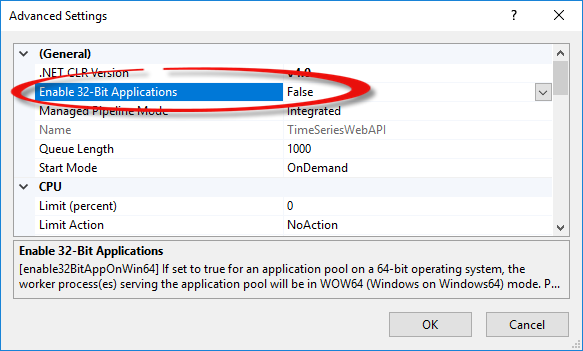
To configure this within the IIS Manager, disable 32 bit applications for the used application pool:
How to allow special characters (for example ":") in a URL?
By default, there are a number of special characters that ASP.NET does not allow before the "?" in a URL - for example colons (":").
To allow for special characters like ":" in the URL, override the defaults by adding a requestPathInvalidCharacters attribute to the <httpRuntime> element in your web.config without the special character that you want to allow.
<configuration>
...
<system.web>
...
<httpRuntime targetFramework="4.7.1" requestPathInvalidCharacters="<,>,*,%,&,\,?" />
How to allow for a dot (".") in a URL?
In some situations, you need to specify a dot (".") in the URL. For example, when using the OpenXML provider, the spreadsheet ID is the filename - including the extension (.xlsx). By default, ASP.NET does not like this.
This can be handled three different ways:
A. Add a trailing forward slash "/" to the URL
By adding a trailing forward slash to the URL, you explicitly tell ASP.NET that it should treat this URL as a route - not a file.
For example:
http://localhost:64076/api/spreadsheet/xlsx/sample.xlsx/
instead of:
http://localhost:64076/api/spreadsheet/xlsx/sample.xlsx
This is probably the most efficient solution to the problem.
B. Set RAMMFAR to true
Add a <modules> element to your web.config and set the runAllManagedModulesForAllRequests attribute to true.
<configuration>
  ...
  <system.webserver>
    ...
    <modules runAllManagedModulesForAllRequests="true">
However, setting RAMMFAR to true has some implications. Instead, consider adding an alternative HTTP handler as described below.
C. Add an alternative HTTP handler
Add an alternative HTTP handler to your web.config file.
<configuration>
  ...
  <system.webserver>
    ...
    <handlers>
      ...
      <add name="MySpreadsheetHandler" path="api/spreadsheet/*" verb="*" type="System.Web.Handlers.TransferRequestHandler" preCondition="integratedMode,runtimeVersionv4.0" />
If you have a combination of multiple web APIs within one project, for example spreadsheets and GIS, it is probably not a good idea simply to set the path attribute to "*". Instead, set the path attribute to "api/*" or add multiple explicit handlers.
Which type of service shall I choose?
Within the individual domains, for example TimeSeries, there might be multiple service types to choose from. Which service to actually choose depends on the circumstances - for example which repository type you intend to use, because all repository types does not necessarily support all service types. For example the Dfs0TimeSeriesRepository does not support adding a new time series or organizing the time series in a hierarchy of groups, so it only works with the TimeSeriesService and the DiscreteTimeSeriesService, but is not compatible with for example the UpdatableTimeSeriesService.
The characteristics of the different types of TimeSeries services are the following:
-
TimeSeriesService. This is the simplest form of a TimeSeries service. It has a quite comprehensive API, but it is all read-only functionality. All time series repositories supports this service type. -
DiscreteTimeSeriesService. This connection type assumes that the underlying time series repository comprise a finite (discrete) number of time series. This is not always the case. For example in thedfs2TimeSeriesRepository, a time series can be extracted using the geographic coordinates. So a dfs2-file comprises an in-finite number of time series. Assuming that the repository comprises a finite number of time series, the API can be extended with methods likeCount,Exists,GetAll,SetValuesetc. -
GroupedDiscreteTimeSeriesService. This service type assumes that the underlying time series repository supports organizing time series in a hierarchy of groups. Under this assumption, methods such asGetByGroupandGetFullNamescan be introduced in the API. This is the case for example in the MIKE OPERATIONS time series repository and certain file-based repositories. -
UpdatableTimeSeriesService. The updatable (and discrete) time series service adds methods likeAdd,RemoveandUpdateto the API. Grouping is not supported. An example of a repository supporting this service type is the WaterForecastTimeSeriesRepository. -
GroupedUpdatableTimeSeriesService. This service type comprise everything from theUpdatableTimeSeriesServiceand adds grouping (GetByGroupandGetFullNamesetc.) to the API. An example of a time series repository that supports this service type is thedfs0GroupedTimeSeriesRepository.
Within other domains such as GIS, Rasters, Spreadsheets etc. a similar approach is used.
How do I configure Swagger to incorporate the XML-annotations for a Web API?
When using the Visual Studio project templates, by default, most of the Web API project templates come with swagger support and are configured to use the XML-annotations of the Web APIs that are included in the template.
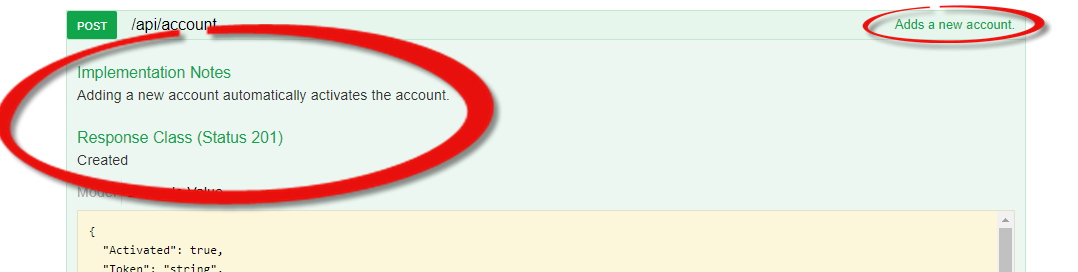
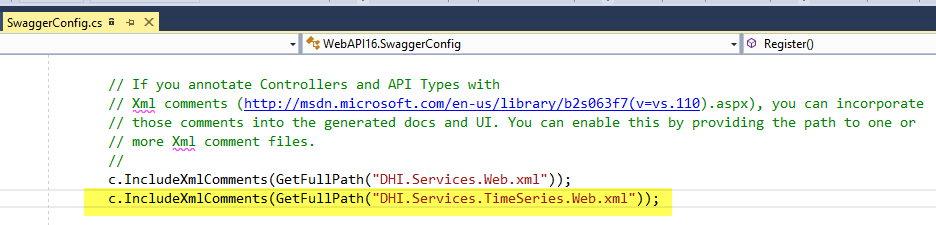
However, if you use one of the generic templates, where you add additional Web APIs to the project, you have to manually configure Swagger to use the XML-annotations of these added Web APIs. This is done in the SwaggerConfig.cs file found in the App_Start folder. In the below example, the XML-annotations of the Time Series Web API are incorporated in the Swagger documentation.
Enable CORS in WebApi to make debugging less of a hassle
When you have a remotely deployed WebApi you have probably struggled accessing the WebApi because off cross-origin requests being blocked. You can loosen that up by adding the following to the startup.cs file
ConfigureServices method:
services.AddCors(options =>

{

    options.AddPolicy("default", policy =>
    {
        policy.SetIsOriginAllowed(origin => new Uri(origin).Host == "127.0.0.1" || new Uri(origin).Host == "localhost")
            .AllowAnyHeader()
            .AllowAnyMethod()
            .AllowCredentials();
    });
});
Configure method:
app.UseCors("default");
This will effectively let the WebApi accept incoming requests from any port from localhost or 127.0.0.1
How to create a pair of RSA signing keys for generation and validation of JWT access tokens
When you are configuring the Authentication API, you need to define a pair of RSA signing keys for generation and validation of JWT access tokens. This key pair (public and private) can be generated using Windows PowerShell:
$rsa = New-Object System.Security.Cryptography.RSACryptoServiceProvider -ArgumentList 2048
$rsa.ToXmlString($true) | Out-File key.private.xml
$rsa.ToXmlString($false) | Out-File key.public.xml
Then save the xml-strings in the Tokens-section of the appsettings.json file - or even better as environment variables referenced from appsettings.json:
"Tokens": {
    "Issuer": "dhigroup.com",
    "Audience": "dhigroup.com",
    "PrivateRSAKey": "[env:PrivateRSAKey]",
    "PublicRSAKey": "[env:PublicRSAKey]",
    "ExpirationInMinutes": 30,
    "RefreshExpirationInDays": 365
  }
What is a "StyleCode"?
A "StyleCode" is a declarative way to define a color palette to represent values in a bitmap image.

A "StyleCode" is a string format. Named colors as well as hexadecimal values can be used to represent the individual colors. Here are a number of examples of "StyleCode" strings:
Explicit:
0:#800080|5:#5500AB|10:#2A00D5|15:#0000FF
4 color bands corresponding to 4 hex colors code. Associated values start from 0 and increase 5 for every color bands. Final color palette is #800080 for 0 to 5, #5500AB for 5 to 10, #2A00D5for 10 to 15 and #0000FF for above 15.
Named colors:
0:green|10:yellow|12:red
Using named colors instead of hexadecimal values. Final color palette is green for 0 to 10, yellow for 10 to 12 and red for above 12.
Short:
0^5:#800080,#5500AB,#2A00D5,#0000FF
Short syntax indicating 4 color bands with value starting from 0 with increment 5 units.
Implicit:
0~15:#800080,#5500AB,#2A00D5,#0000FF
Combined:
0^5:#800080,#5500AB,#2A00D5,#0000FF|20:#0022FF|25:#00AAFF
What is a Zone?
A zone is a collection of pixels within a raster (radar) image representing either a point, a line or a polygon. Typically, zones are polygons representing for example run-off catchments, but you can also define point zones representing for example a rain gauge.
If a zone is of type point, it is represented by one particular radar image pixel. If a zone is of type line it is represented by a number of pixels with equal weight in zone intensity calculations. If a zone is of type polygon it is represented by a number of radar image pixels – each weighted according to the part of the pixel laying within the polygon in zone intensity calculations (see image below).

How do I migrate to the new ASP.NET Core web API components?
- Create a brand new Web API project from the Visual Studio project template
- Re-install the necessary Web API NuGet packages (in the new versions
DHI.Services.*.WebApi) - Re-install the necessary provider NuGet packages
- Copy the contents from the App_Data folder in the obsolete project into the App_Data folder in the new project (overwriting for example
connections.json) - In the
connections.jsonfile, modify the connection types to the new types. For example:
"$type": "DHI.Services.Web.GroupedHostServiceConnection, DHI.Services.Web"
must be replaced with:
"$type": "DHI.Services.WebApi.GroupedHostServiceConnection, DHI.Services.WebApi"
- In the
startup.csfile un-comment registration of relevant JSON converters - In the
startup.csfile un-comment registration of relevant XML documentation files for the Swagger UI
If your project contains any custom controllers, these must be migrated to ASP.NET Core.
Breaking Changes
For the Web API consumers - typically browser applications - the following breaking changes are introduced with the new Web API components:
- The authentication mechanism has been changed from basic authentication to token-based authentication. A JWT bearer token must be provided in the
Authorizationheader with each request:
Authorization: Bearer {token}
-
Now all endpoints in all components, except for the
api/tokensendpoint to request an access token, are guarded with authorization attributes. This means that an access token is mandatory in every request. -
The use of date/time literals in the endpoint URLs has been simplified so that ISO date/times are used everywhere - e.g.:
GET api/timeseries/csv/timeseries.csv;item1/value/2015-11-14T10:52:31
- The endpoint URLs are changed so the plural version of resources is used – e.g.:
GET api/accounts/john.doe
What is the difference between the "Id" and "FullName" identifiers?
All entities in repositories have a unique identifier. "Id" is a generic identifier with no semantics. "FullName" is a semantic identifier representing the "path" to an entity in a grouped hierarchy of entities. Some repositories use "Id" identifiers while other repositories (aka. grouped repositories) use "FullName" identifiers - and some even support both.
The FullName identifier is a combination of a group that the entity belongs to and the name of the entity - separated by a forward slash "/". The group itself can be a hierarchy of groups separated by forward slashes. If an entity does not belong to a group, the unique identifier is the name alone.
Example:
MyGroup/MySubgroup/MyTimeSeries
NOTE: in the URIs of the web APIs, the forward slashes ("/") in a FullName identifier must be replaced by a pipe character ("|"). If the FullName identifier itself includes pipe characters ("|"), these must be escaped with another pipe-character – i.e. "|" must be replaced with "||".
Example:
GET api/timeseries/mc-ts/mygroup|mysubgroup|ts1/value/lastbefore/2006-02-15T220000
The format of the identifier of a specific repository can be looked up in the documentation of that particular repository - for example the SpreadsheetRepository in the MCLite provider.
What are the cached map services?
In addition to the MapService, there are two additional types of map services supporting image caching: CachedMapService (memory cache) and FileCachedMapService (file cache). The images are cached as “tiles” at a number of predefined “zoom levels”. For each map service request, the necessary tile-images are retrieved from the cache (or created and added to the cache, if not present), stitched together and cropped to the final response image.
As the caching mechanism is implemented at the service-level, it will work with any IMapSource-implementation – for example Dfs2MapSource or DfsuMapSource. Technically, the CachedMapService and the FileCachedMapService are decorators of the “ordinary” MapService and is therefore configured exactly the same way (except for allowing a few extra configuration options, as described below).
Both cached service types support the map source properties NumberOfCachedZoomLevels and CachedImageWidth. Furthermore, the CachedMapService supports the property CacheExpirationInMinutes while the FileCachedMapService supports the property CacheRoot.
How do I enable support for Source Link in Visual Studio?
Did you know that you can step into the source code of the Domain Services NuGet packages when debugging? This is because these NuGet packages support a technology called "Source Link". It is required that you have access to the DHI source code on private GitHub, though.
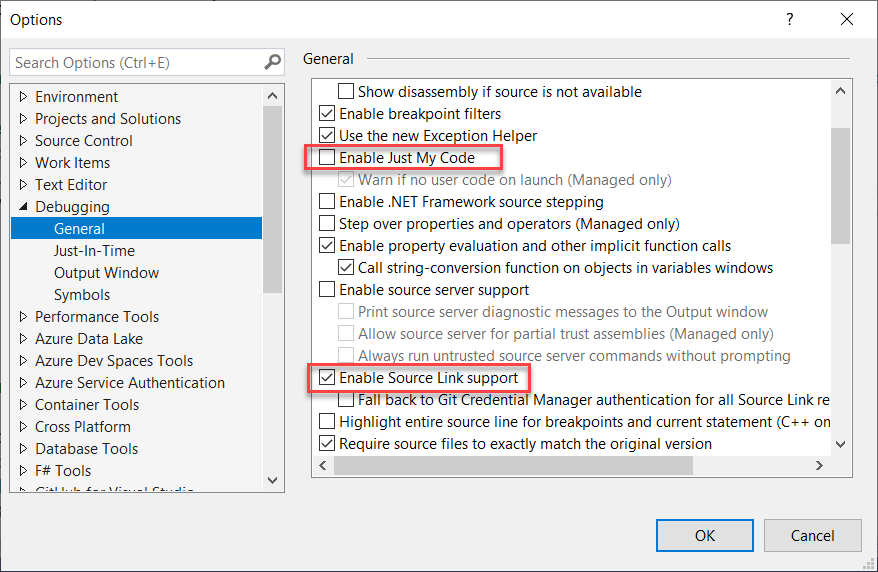
To enable support for Source Link within Visual Studio, you have to enable "Enable Source Link Support" and disable "Enable Just My Code" in the Debugging options.
Using the MIKECore provider in a .NET Core environment
The MIKECore provider is depending on native (C++) DLLs. These native DLLs are typically built for a 64-bit environment only, so to use the MIKECore provider, always remember to target x64 in the .csproj-file. If the runtime environment is .NET Core (i.e. not .NET Framework) you must also add the proper RuntimeIdentifier (win-x64):
<PropertyGroup>
  ...
  <TargetFramework>netcoreapp3.1</TargetFramework>
  <Platforms>x64</Platforms>
  <RuntimeIdentifier>win-x64</RuntimeIdentifier>
  ...
</PropertyGroup
For details, see the MIKE Core SDK documentation.
Hosting an application, which uses the MIKECore provider, as an Azure App Service
When you host an application, which uses the MIKECore provider, as an Azure App Service, you might run into this runtime exception:
Unhandled Exception: System.IO.FileLoadException: Could not load file or assembly 'DHI.Chart.Map.dll' or one of its dependencies
By default, the native C++ component mzchart.dll will try to write to the Windows registry. This is not allowed in an Azure App Service. However, setting the below environment variable will override this default behavior and solve this issue:
MZCHART_NO_REGISTRY=1