Troubleshooting
This section describes common issues using the MIKE OPERATIONS and how to investigate issues.
Too many PostgreSQL connections (jobs are failing)
When running multiple scheduled MIKE OPERATIONS jobs, jobs can fail if there are no available database connections
What MIKE OPERATIONS processes are using connections
MIKE OPERATIONS use PostgreSQL connections when starting the MIKE OPERATIONS applications:
- MIKE Workbench
- MIKE OPERATIONS Desktop (OperatorUI)
- Database Manager Utility
- MIKE OPERATIONS Web
- MIKE OPERATIONS Web Classic
- MIKE OPERATIONS Job Manager Service (DHI Solutions Job Manager Service)
Here, applications with user interface is using at least two connections and jobs running are using one or more connections.
Especially connections used by the job manager service is the cause of many connections used when many jobs are running.
Things to Check
When PostgreSQL runs out of available connections, there are some things that needs to be checked.
Windows Task Manager processes running
Open the Windows Task Manager and check what processes are running.
MIKE OPERATIONS jobs are running using the executable DHI.Solutions.JobManager.JobRunner.exe.
If many processing is running and some without any CPU usage, it indicates a deadlock.
Disk running full
Check the disk usage, to make sure that the disk where the PostgreSQL database server is running, is running dull, and cannot provide new connections.
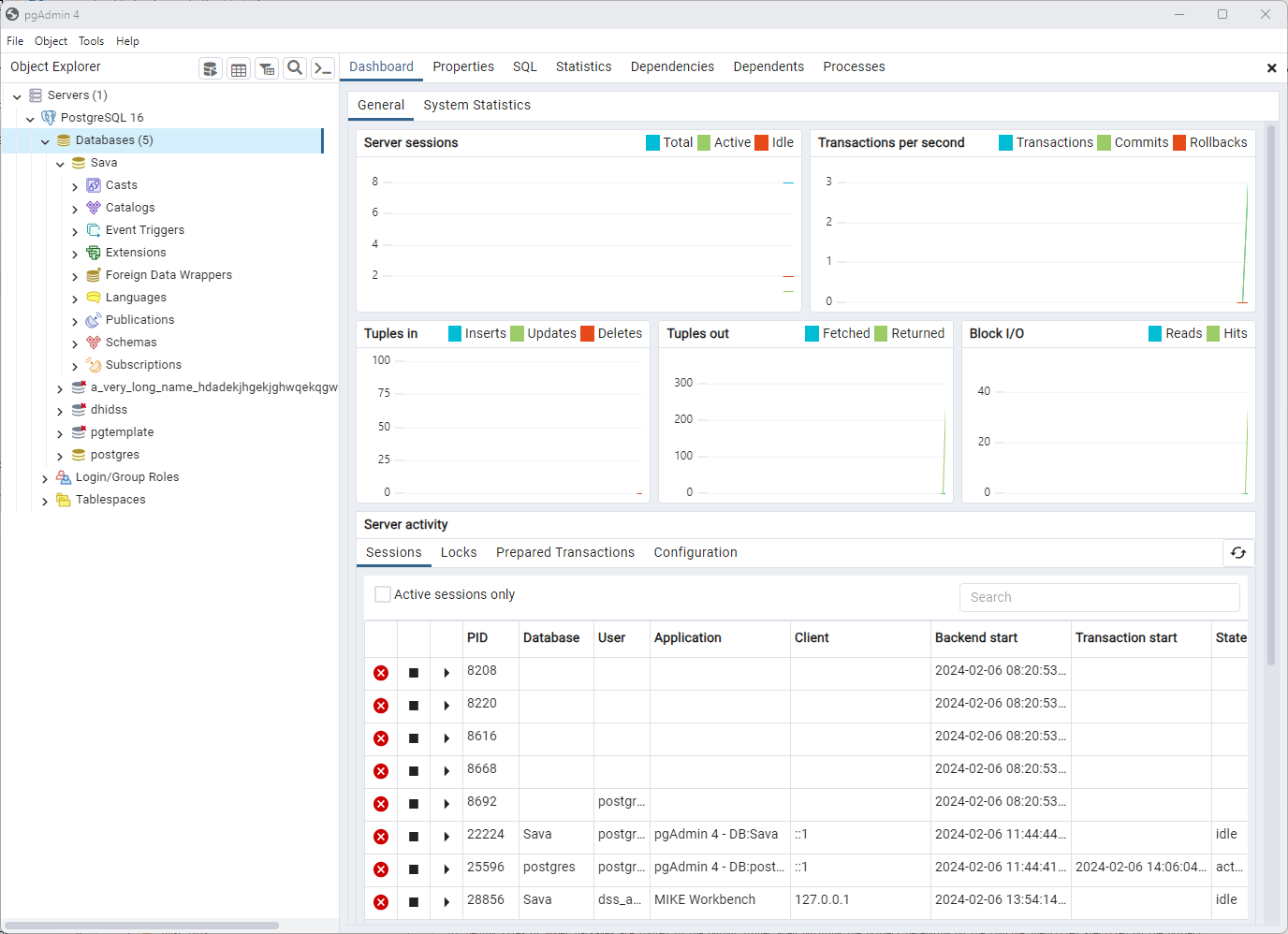
PgAdmin connections used
The PostgreSQL Administration tool (pgAdmin) can display open connections including what database the connections are using.
Check what application and what database is using the connections.
PostgreSQL Server Config
The PostgreSQL database server configuration can be maintained in the file postgresql.conf found in the PostgreSQL installation directory e.g. C:\Program Files\PostgreSQL\16\data.
There are a few properties of the PostgreSQL database server for configuring the available connections.
See e.g. parameter descriptions and recommendations on postgresqlco.nf.
- max_connections
Determines the maximum number of concurrent connections to the database server. - reserved_connections
Determines the number of connection slots that are reserved for connections by roles with privileges of the pg_use_reserved_connections role. - superuser_reserved_connections
Determines the number of connection slots that are reserved for connections by PostgreSQL superusers.
The postgresql.conf section shoen below shows the default settings of PostgreSQL 16.
#------------------------------------------------------------------------------
# CONNECTIONS AND AUTHENTICATION
#------------------------------------------------------------------------------

# - Connection Settings -

listen_addresses = '*'      # what IP address(es) to listen on;
                    # comma-separated list of addresses;
                    # defaults to 'localhost'; use '*' for all
                    # (change requires restart)
port = 5432             # (change requires restart)
max_connections = 100           # (change requires restart)
#reserved_connections = 0       # (change requires restart)
#superuser_reserved_connections = 3 # (change requires restart)
Best Practices
Keep the number of scheduled jobs low
It is recommended to keep the number of jobs running low because:
- Jobs perform better when sharing applications and jobs.
Every job starts a job runner processDHI.Solutions.JobManager.JobRunner.exe, that startup an MIKE OPERATIONS application using a few number of connections. - Jobs use fewer connections as fewer applications are started.
Use spreadsheets for configuring e.g. import information about stations to import and use a single script to import all stations.
import System
import clr
clr.AddReference("DHI.Solutions.SpreadsheetManager.Interfaces")
import DHI.Solutions.SpreadsheetManager.Interfaces

def ImportAllStations():
    """
    <Script>
    <Author>admin</Author>
    <Description>Script importing all stations specified in a configuration spreadsheet.</Description>
    </Script>
    """

    # Get the spreadsheet module
    spModule = app.Modules.Get('Spreadsheet Manager')

    # Get the spreadsheet
    sp = spModule.SpreadsheetList.Fetch('/MyImportConfiguration')

    # Open the spreadsheet
    spModule.OpenSpreadsheet(sp)

    try:
        # Loop the first 10 rows in the spreadsheet.
        for rowNo in range(1, 10):
            # Specify the spredsheet cell references.
            stationNameRef = 'A' + rowNo.ToString()
            stationTsPathRef = 'B' + rowNo.ToString()

            # Get values from the spreadsheet.
            stationName = spModule.GetCellValue(sp, 'Sheet1', stationNameRef)
            stationTsPath = spModule.GetCellValue(sp, 'Sheet1', stationTsPathRef)
            print(stationName)

            # Add the ts import scripting here, e.g. by calling a method containing the data import.
            pass
    finally:
        # Close the spreadsheet in a finally block.
        spModule.CloseSpreadsheet(sp)
Close MIKE OPERATIONS applications when not used
Make sure to close MIKE Workbench, MIKE OPERATIONS Desktop (Operator UI) and the Database Manager Utility when they are not used, to make sure that the applications are not taking up connections.
Do not schedule many jobs at the same time
Starting/scheduling more jobs at the same time, e.g. by scheduling more jobs to start at 10:25, has been seen to cause jobs to hang (deadlocks). Dead locks can be a reason for connections not being released and will eventually use up all available connections.