Deployment
The easiest way to configure and deploy the Workflow components is by using the Domain Services Visual Studio project templates. These project templates can be installed as a Visual Studio 2017 extension using the Software Center. Furthermore, it is a prerequisite to have set up the DHI NuGet package feed.
Let us follow a use case in which it is necessary to setup a Web API and workflow that access time series data in a MIKE OPERATIONS database both from the web page as well as in the workflows. In addition, we want the workflow job entries as well as log entries in the PostgreSQL database.
Web API
- In VS select File | New | Project and under Installed | Visual C# | Web select for example the DHI Domain Services Web API (raw) project template and create a new project. Call the project for example "NCOSWebAPI".

- Install the DHI.Services.TimeSeries.Web NuGet package. This will add support for the time series Web API.
- Install the DHI.Services.MCLite NuGet package. This will add support for data in MIKE OPERATIONS.
- Install the DHI.Services.Jobs.Web NuGet package. This will add support for the job execution Web API.
- Install the DHI.Services.PostgreSQL NuGet package. This will add support for a PostgreSQL-based Job repository.
- Configure the Web API (connections, user accounts and job hosts) for example by coping from the Plugin References or using the API Administrator.
- Build the project and Publish it to get to a deployed folder.
- Finally, add the Web API project to a version control system.
Job Runner Service
- In VS select File | New | Project and under Installed | Visual C# | Windows Desktop select the DHI XCopy Deployment project temlate and create a new project. Call the project for example "XCopyDeployJobRunner". This creates a console application that, when run, will copy all the project artifacts to a Deployment folder - ready for XCopy deployment.
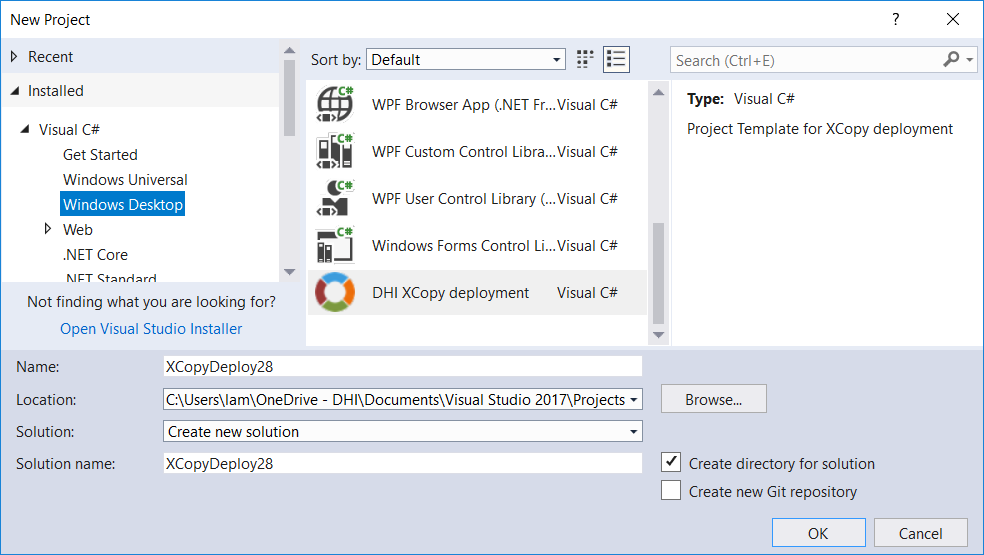
- Install the DHI.Services.JobRunner NuGet package. This will install the Job Runner service and batch (.bat) files for installing.
- Install the DHI.Services.WF NuGet package. This package adds support for execution of Windows Workflow Foundation (WWF) based workflows.
- Optionally, if you want to use the PostgreSQL-based Job repository, install the DHI.Services.PostgreSQL NuGet package.
- Optionally, if job execution shall be performed on cloud instances such as Azure virtual machines, you must install the nuget package with the provider for the cloud instance handler that you are going to use - for example DHI.Services.AzureCompute.
- Run the application. It will now assemble the files from the NuGet packages and copy them to a Deployment folder.
- The Job Runner will have copied the configuration files
worker-connections.jsonandDHI.Services.JobRunner.exe.config- and possiblyazureauth.properties, if you installed the DHI.Services.AzureCompute package - to the Deployment folder. These project configuration files shall be added to the XCopyDeploy project and customized according to the project needs. Furthermore, the "Copy to Output Directory" property of these files should be set to "Copy Always". Now these files will always be copied to the Deployment folder overwriting the NuGet packages defaults - even if the packages are later updated.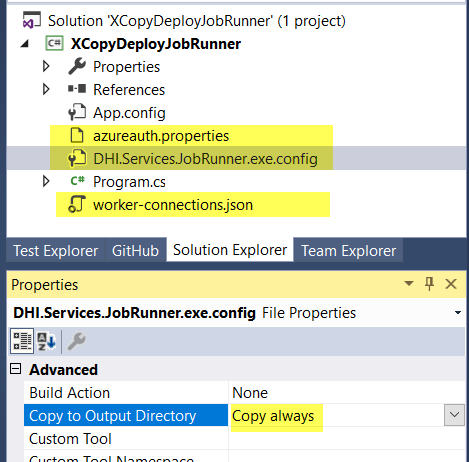
- Copy the Deployment folder to the destination machine (maybe rename it to for example "JobRunner") and run
DHI.Services.JobRunner.Install.batto install the service. - Run
DHI.Services.Provider.WF.OpenPort.batto ensure that the port that the Domain Services repository listens on is open. This will run the commandnetsh 'http add urlacl url=http://*:7778/ user=Everyone"'. The Job Runner is now installed as a Windows Service.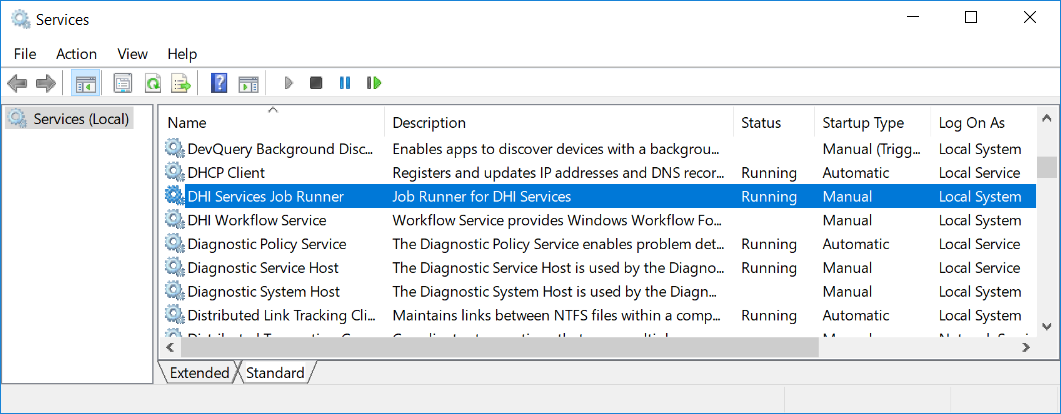
- Finally, add the XCopyDeployJobRunner project to a version control system.
Workflow Service
- In VS select File | New | Project and under Installed | Visual C# | Windows Desktop select the DHI XCopy Deployment project template and create a new project. This creates a console application that, when run, will copy all the project artifacts to a Deployment folder - ready for XCopy deployment.
- Install the DHI.Services.WF NuGet package. This will provide Workflow functionality.
- Install the DHI.Services.MCLite NuGet package. This will provide access to data in MIKE OPERATIONS.
- Install the DHI.Services.PostgreSQL NuGet package. This will provide DHI.WorkflowExecuter with the PostgreSQL logging capability.
- Install the DHI.Workflow.Service NuGet package. This will provide the workflow Service with installation bat files.
- Install the DHI.Workflow.Activities NuGet package. This will provide the workflow activities.
- Install the DHI.WorkflowDesigner and DHI.WorkflowExecuter NuGet packages. This gives designer and execution functionality. In principle, these do not have to be deployed to the same location as where the Workflow Service is installed. Often they will go to another location.
- Run the application. It will now assemble the files from the NuGet packages and copy them to a Deployment folder.
- The DHI.WorkflowDesigner will have copied
DHI.WorkflowDesigner.exe.configand DHI.WorkflowExecuter will have copiedDHI.WorkflowExecuter.exe.configto the deploy folder. Copy these to the project and set the "Copy to Output Directory" to "Always Copy". Now these files will always be copied to the Deployment folder overwriting the NuGet packages defaults - even if the packages are later updated. - Copy the Deployment folder is deployed to the destination machine and run
DHI.Workflow.Service.WinSvcHost.Install.batto install the service. - If you require the Workflow Service to run under a specific user account, modify the DHI.Workflow.Service.WinSvcHost.Install.bat file to include username and password parameters after the InstallUtil.exe command as shown here: "C:\WINDOWS\Microsoft.NET\Framework64\v4.0.30319\InstallUtil.exe" /username="mydomain\myuser" /password="mypassword" DHI.Workflow.Service.WinSvcHost.exe Note that you will only be able to detect a logon failure when starting the service, but installing the service will be successful even with an incorrect username/password combination.
- If the Designer is to be used running remotely, then run
DHI.Services.Provider.WF.OpenPort.batto ensure that the port that the Domain Services repository listens on is open. This will runnetsh 'http add urlacl url=http://*:7778/ user=Everyone"'. - Finally, add the XCopy deploy project to a version control system.