Web API Deployment
The Domain Services (DS) Web API templates are ASP.NET Core applications that can be deployed and hosted in different ways. Out of the box, the DS Web API templates generate a self-hosted console app (exe-file) using the Kestrel web server. In a simple setup, this exe-file could be hosted within a standard Windows Service. However, in most production scenarios, you would host it within an Azure App Service, configure it with a reverse proxy server such as IIS or host it as a Docker container.
IIS Proxy Server
This section describes how to deploy and host a DS Web API with an IIS proxy server on Windows Server 2016.
1) Open the Server Manager:
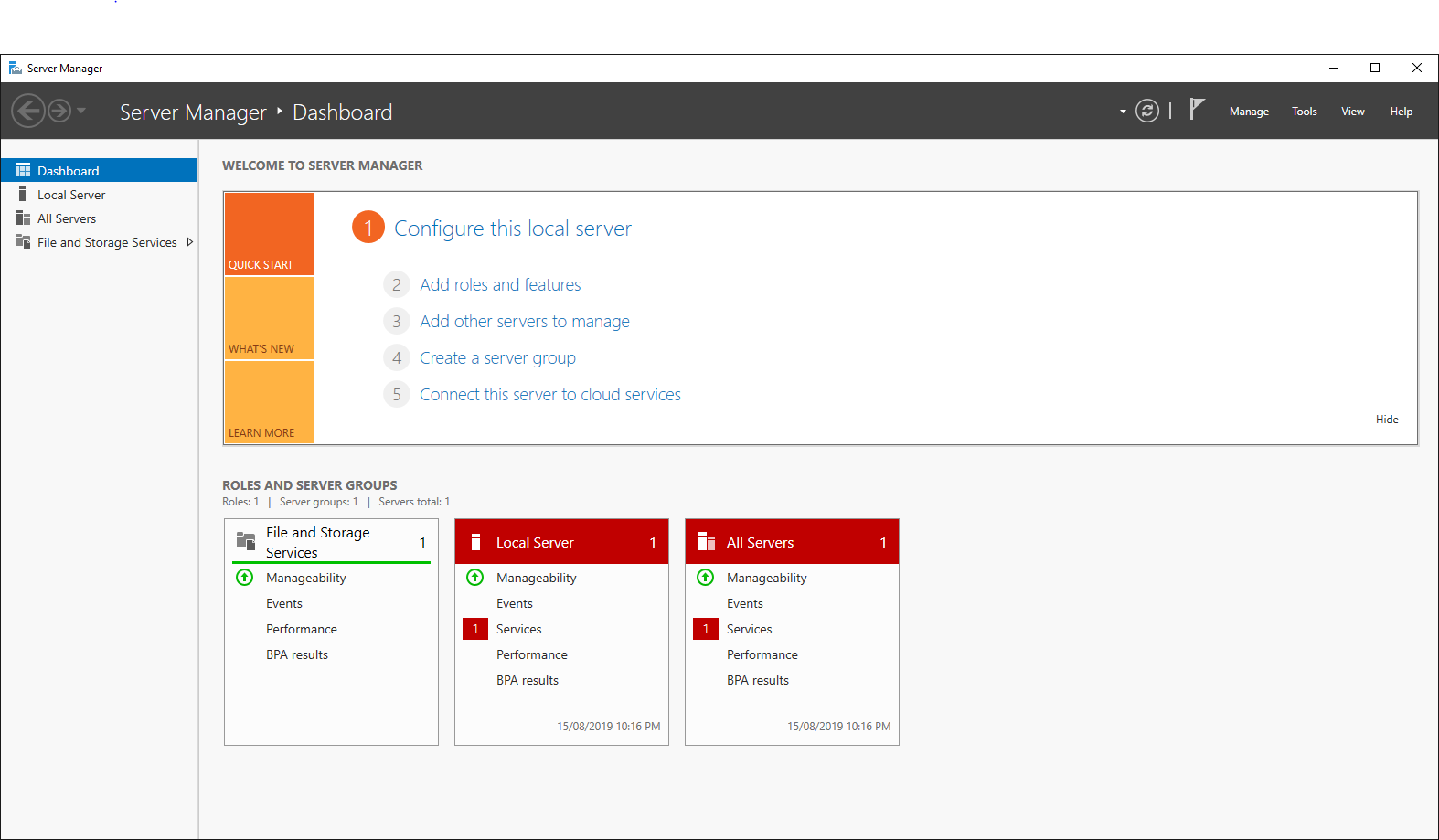
2) Press “Add roles and features”.
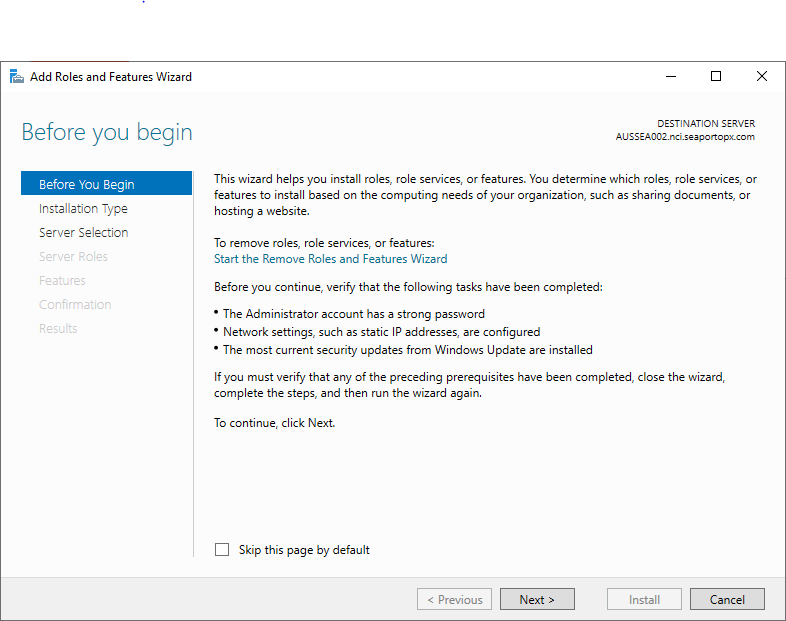
3) Click Next until the following dialog is shown:
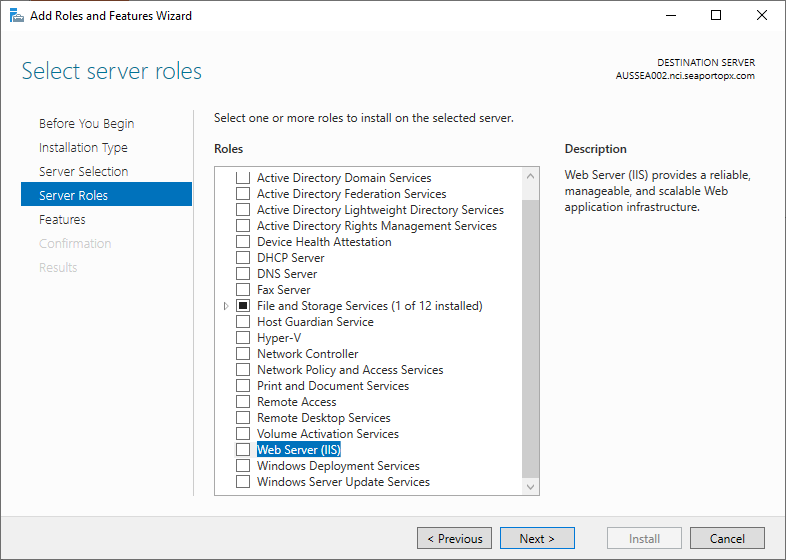
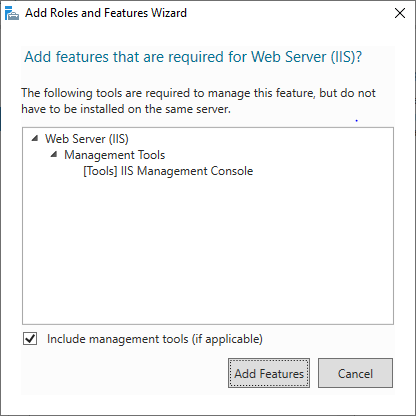
4) Select Web Server (IIS) and confirm installing the features by pressing Add Features, then press Next.
5) Press Next until the following dialog is shown:
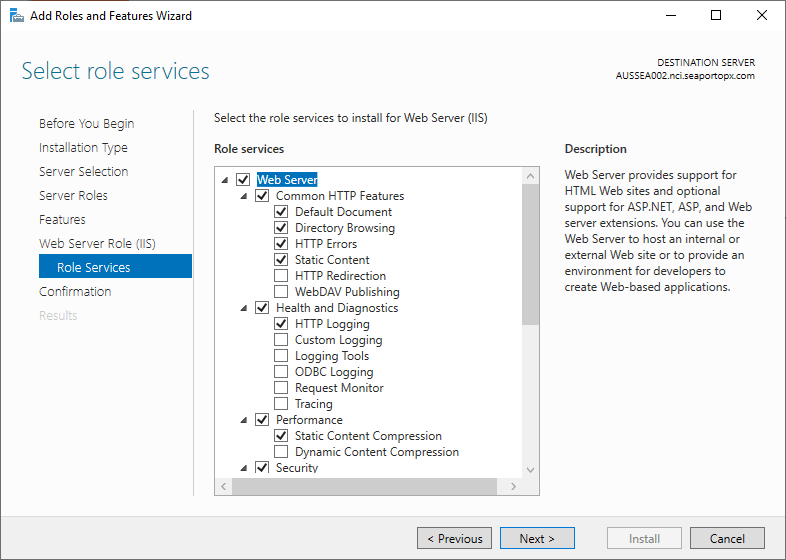
6) Under Application Development, check .NET Extensibility 4.7 and confirm installing the features by pressing Add Features.
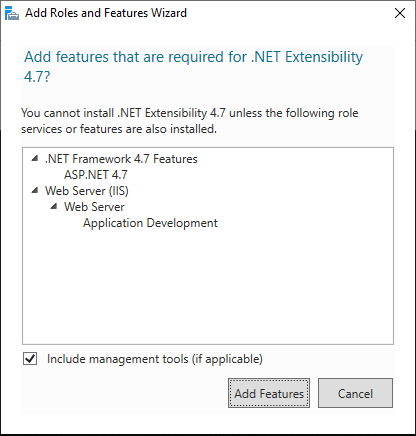
7) Press Next and Install to Complete the installation process.
8) To allow for running DS as an out-of-process ASP. NET Core web application, download and install the ASP.NET Core 5.0 Runtime (v5.0.11) - Windows Hosting Bundle Installer.
9) Web sites are created in the normal way in the IIS. But the Application Pool for the web site should have .NET CLR Version set to “No Managed Code” since the site is run from outside.
Troubleshooting
Q: When I access the Accounts API using the default Accounts repository (accounts.json) it gives me an error: "Access to the path 'C:\inetpub\wwwroot\MyWebSite\App_Data\accounts.json' is denied".
A: Whenever the web server needs to write to the json files, you need to provide 'modify' privileges to the two machine accounts IIS_IUSRS and IUSR.
Q: When I run my Web API through the IIS I get an error: "An error occurred while starting the application".
A: In the web.config file, change stdoutLogEnabled="false" to stdoutLogEnabled="true" and create the folder "logs" in the root of the folder. Run the web application again and inspect the log file created.
Q: After deploying the Web API, the following error message occurs: “Assets file 'C:\Users\abc\source\repos\WebApi\WebApi\obj\project.assets.json' doesn't have a target for '.NETFramework,Version=v4.7.2/win7-x64'. Ensure that restore has run and that you have included 'net472' in the TargetFrameworks for your project. You may also need to include 'win7-x64' in your project's RuntimeIdentifiers.”
A: The projects Platform Targets are set to "Any CPU". Set them to x64.
Q: After deploying a Web API with the MIKECore provider component, the following error message occurs: “Could not load file or assembly 'DHI.Chart.Map.dll' or one of its dependencies. The specified module could not be found.”
A: Ensure that the Application Pool the web service runs in does not have “Enable 32-bit Applications” set to true and that “Load User Profile” is set to true.
Docker
All the DS Web API components target .NET Standard 2.0 and are thus truly cross platform. They can be used with any .NET runtime - including .NET Core. So indeed you could set up an ASP.NET Core project targeting the .NET Core runtime, install and configure DS Web API components and deploy it as a Docker container based on an ASP.NET Core image.
However, because most of the technology-specific providers, such as the MIKECore provider and the PostgreSQL provider, require the .NET Framework runtime, the DS Web API project templates target the .NET Framework runtime. So a project based on the DS Web API projects templates must be deployed as a Docker container based on an ASP.NET Framework image.
The below recipe describes how to containerize a DS Web API project.
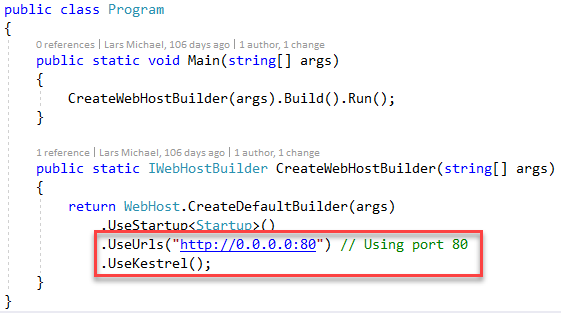
1) To allow remote connection on Kestrel, add the following lines in the Program.cs file of your project:
2) Create a dockerfile
The following base images are used:
microsoft/dotnet-framework:4.7.2-runtime-windowsservercore-1803for the sake of the providers that are using .NET Frameworkmicrosoft/dotnet:2.2-sdk-nanoserver-1809for the sake of the Web APIs
# escape=`

FROM microsoft/dotnet:2.2-sdk-nanoserver-1809 AS dotnet
FROM microsoft/dotnet-framework:4.7.2-runtime-windowsservercore-1803  AS base

SHELL ["powershell", "-Command", "$ErrorActionPreference = 'Stop'; $ProgressPreference = 'SilentlyContinue';"]

ENV DOTNET_PATH="C:\Program Files\dotnet"

COPY --from=dotnet ${DOTNET_PATH} ${DOTNET_PATH}

RUN $env:PATH = $env:DOTNET_PATH + ';' + $env:PATH; `

    [Environment]::SetEnvironmentVariable('PATH', $env:PATH, [EnvironmentVariableTarget]::Machine)

WORKDIR /app

COPY . .

ENTRYPOINT ["DomainServices.Timeseries.API.exe"]
3) Put dockerfile on publish folder (in Visual Studio right click project - Publish)
4) Run docker build -t domainservices.timeseries.api
5) Run docker run -d -p 8080:80 --name domainservices.timeseries.api domainservices.timeseries.api:latest (port 80 is used for app inside container, mapped to port 8080 on host machine)