Overview - (WF Old)
Introduction
The Workflow functionality allows execution of workflows either fully automated or on demand based on building blocks put together in an intuitive designer. The Workflow functionality is based on the Windows Workflow Foundation, but extended with remote execution and queuing functionality and is integrated with DHI Domain Services.
The core building blocks in the workflows are called "activities" or "code activities". The .NET framework comes with a series of built-in activities for performing e.g. IF statements or loops, but in addition to that there are a number of activities that have been built to perform tasks specific to the use of workflow to automating DHI specific tasks. It spans from simple tasks such as CopyFile to more complex tasks such as Dfsu2Dfs2.
There are several ways that workflows can be executed. If integrated into a web solution, then the Domain Services offers a Web API (the Jobs Web API) for doing on-demand execution of workflows. The Web API can also be invoked in an automated fashion allowing scheduled execution of workflows.
Components and Interactions
The workflow components and their interactions are illustrated in below figure.
The following explanation will focus on Use Case 1 in the flow chart, where a web page performs a request for execution.
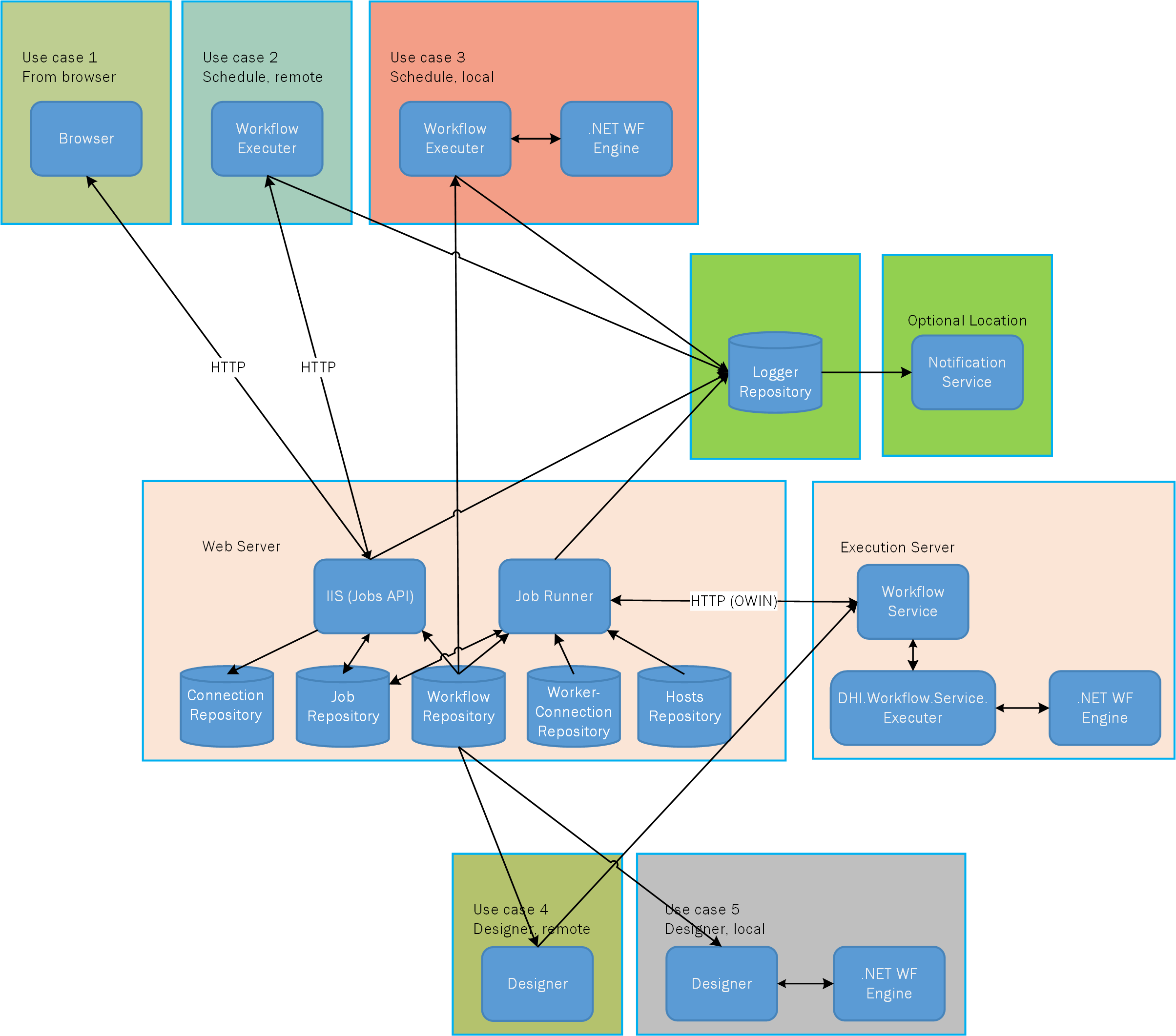
- The user requests execution of a workflow in the
Browser, which issues a request to the web server, IIS, where theWeb APIfetches the connection from theConnection Repository. The repository has information on where job requests are stored in theJobs Repositoryand information on where the workflows are stored in theWorkflow Repository. - The request for a job is stored in the
Jobs Repository. - The
Job Runner Serviceruns continuously and based on its ownWorker Connection Repositoryit knows to monitor the sameJobs Repositorywhere theWeb APIstored the request for a workflow execution. When the request arrives, it loads itsHosts Repositoryto identify what servers it can use to execute the workflow and - issues the request to the
Workflow Serviceon that server. TheWorkflow Serviceuses a separate executable to execute the workflow to contain any memory leaks that may arise. TheWorkflow Service Executeruses the Windows Workflow Foundation to execute the workflow. - Throughout the execution, progress and messages are emitted back through the chain up to the
Web APIwhere logs are stored.
Above explained use is one use case. When workflows are scheduled to run automatically, the Browser box is replaced with a Workflow Executer, which is a simple executable capable of performing the same Web API request as the browser. This Executer is different from the Workflow Service Executer, which is an internal part of the service. The Workflow Executer is also able to execute workflows locally in-process, which is usually used when workflows need to be executed immediately without potentially queuing
The Workflow Designer
The Workflow Designer is used to build workflows. It allows executing workflows locally from inside of the Designer itself in a similar way as when the executer is executing locally. The designer also allows executing workflows remotely on hosts. This execution accesses the host directly bypassing the queuing mechanism.
The Jobs Web API
The Jobs Web API serves as a RESTful access point to the Domain Services job execution functionality. It allows managing the job repositories typically by inserting new job requests or allow querying the status of a specific job.
The Job Runner Service
The Job Runner service acts as a broker between job repositories and hosts for executing the jobs. When set up, it will automatically monitor multiple job repositories and react when new job requests appear. When a new job request appears, it will identify the host that the workflow should be executed on and maintain communication with the Workflow Service while the execution is performed. The Job Runner services is installed/uninstalled using bat files where it is deployed.
The Workflow Service
The workflow service is installed on the host and is responsible for accepting requests for executing workflows and issuing these to an internal execution mechanism (the DHI.Service.Workflow.Executer). The execution is handled by this separate application to harden the system against memory leaks implemented through the workflows.
The Workflow Executer
The executer is used to either do local in memory execution or schedule workflows to be run through the Web API. The latter is often used with the Windows Task Scheduler to perform scheduled executions.
The Repositories
There are a series of storages/repositories in the system that holds data and binds the components together. Some repositories are used for configuration, for example the Connections repository and the Worker Connection repository. The Workflow repository is used for storage of workflow definitions while the Jobs repository is used partly as a message queue and partly as a status and logging mechanism for job/workflow execution.
Below, the individual repository types are described in more details.
Connections Repository
The connections repository (connections.json) is the general configuration mechanism of the Web API connections. Connections are managed through the Connections Web API. In the API Administrator, connections can be configured using a UI.
When for example a JobServiceConnection is added, this couples a connection ID, below called "MyExecutionConnection", with several other sources of information.
Connections repository example:
{
    "$type": "System.Collections.Generic.Dictionary`2[[System.String, mscorlib],[DHI.Services.IConnection, DHI.Services]], mscorlib",
    "MyExecutionConnection": {
        "$type": "DHI.Services.Jobs.Web.JobServiceConnection, DHI.Services.Jobs.Web",
        "JobRepositoryConnectionString": "Server=localhost;Port=5432;Database=JobTest;User Id=postgres;Password=postgres",
        "JobRepositoryType": "DHI.Services.Provider.PostgreSQL.JobRepository, DHI.Services.Provider.PostgreSQL",
        "TaskRepositoryConnectionString": "[AppData]workflows.json",
        "TaskRepositoryType": "DHI.Services.Jobs.Workflows.WorkflowRepository, DHI.Services.Jobs",
        "Name": "My Execution Connection",
        "Id": "MyExecutionConnection"
    }
}
JobRepositoryType+JobRepositoryConnectionString: This is the repository of job entries. By default Domain Services comes with a JSON repository which is suited for testing purpose, but less suited for production. The PostgreSQL provider includes a job repository, which will automatically create its data model when pointed to a database. The standard PostgreSQL connection string can take an optional argumentTable=public.SomeOtherTableto change the table to something different from the default Jobs.TaskRepositoryType+TaskRepositoryConnectionString: This is the workflow repository. Currently only a JSON based task repository exists.
When a request comes in for a job in the Web API it uses the TaskRepository to check that the workflow asked for exists and if it does, it inserts the job request in the JobRepository.
Worker Connections Repository
The worker connections repository (worker-connections.json) contains the same structure as the connections repository and serves the same configuration purpose - but for the Job Runner Service workers. However, in contrast to the Web API connections, the worker connections are not backed up by an API or a UI. The worker-connections.json file has to be edited manually.
Workers are "plugins" to Domain Services responsible for job execution. The Job Runner Service will monitor all worker connections and their respective job repositories for new job execution requests. When a new request for a job execution is detected, the Job Runner will fetch the workflow to be executed from the task repository and send this to the host.
Worker connections repository example:
{
    "$type": "System.Collections.Generic.Dictionary`2[[System.String, mscorlib],[DHI.Services.IConnection, DHI.Services]], mscorlib",
    "Worker": {
        "$type": "DHI.Services.JobRunner.JobWorkerConnection, DHI.Services.JobRunner",
        "JobRepositoryConnectionString": "Server=localhost;Port=5432;Database=JobTest;User Id=postgres;Password=postgres",
        "JobRepositoryType": "DHI.Services.Provider.PostgreSQL.JobRepository, DHI.Services.Provider.PostgreSQL",
        "TaskRepositoryConnectionString": "C:\\inetpub\\wwwroot\\WFA\\App_Data\\workflows.json",
        "TaskRepositoryType": "DHI.Services.Jobs.Workflows.WorkflowRepository, DHI.Services.Jobs",
        "HostRepositoryConnectionString": "C:\\inetpub\\wwwroot\\WFA\\App_Data\\hosts.json",
        "HostRepositoryType": "DHI.Services.Jobs.HostRepository, DHI.Services.Jobs",
        "WorkerConnectionString": "hostPortNumber=7777;clientPortNumber=7778",
        "WorkerType": "DHI.Services.Provider.WF.RemoteWorker, DHI.Services.Provider.WF",
        "LoggerConnectionString": "C:\\inetpub\\wwwroot\\WFA\\App_Data\\Logs",
        "LoggerType": "DHI.Services.Provider.WF.WorkflowLogger, DHI.Services.Provider.WF",
        "Name": "Workflow worker",
        "Id": "Worker"
    }
}
JobRepositoryType, JobRepositoryConnectionString, TaskRepositoryType and TaskRepositoryConnectionString are similar to the properties of a connection in the connections repository.
-
WorkerType+WorkerConnectionString: This is the actual plugin (provider) for executing workflows. Although aDHI.Services.Provider.WF.Workerexists, which allows for local in-process execution of workflows, this is typically not desirable in the Job Runner. This is why theDHI.Services.Provider.WF.RemoteWorkeris normally used in production. The Remote worker communicates with the Workflow Service on the hosts using OWIN which is a self-hosting web service. Outbound to the hosts on port 7777 and the hosts will respond back to the inbuilt web server in the Remote Worker on port 7778. These are the default ports, but can be changed through the connection string. -
LoggerType+LoggerConnectionString: The Job Runner injects a logger into the worker so that the worker can perform detailed logging. Any progress in code activities, including internal messages emitted, are sent back from the hosts and logged. The repository used in the above example is a text file based logger implementation that results in a log file with the job id as file name.
Worker connections repository example (Grouped hosts):
{
    "$type": "System.Collections.Generic.Dictionary`2[[System.String, mscorlib],[DHI.Services.IConnection, DHI.Services]], mscorlib",
    "Worker": {
        "$type": "DHI.Services.JobRunner.JobWorkerConnection, DHI.Services.JobRunner",
        "JobRepositoryConnectionString": "Server=localhost;Port=5432;Database=JobTest;User Id=postgres;Password=postgres",
        "JobRepositoryType": "DHI.Services.Provider.PostgreSQL.JobRepository, DHI.Services.Provider.PostgreSQL",
        "TaskRepositoryConnectionString": "C:\\inetpub\\wwwroot\\WFA\\App_Data\\workflows.json",
        "TaskRepositoryType": "DHI.Services.Jobs.Workflows.WorkflowRepository, DHI.Services.Jobs",
        "HostRepositoryConnectionString": "C:\\inetpub\\wwwroot\\WFA\\App_Data\\hosts.json",
        "HostRepositoryType": "DHI.Services.Jobs.GroupedHostRepository, DHI.Services.Jobs",
        "DefaultHostGroup": "MA",
        "WorkerConnectionString": "hostPortNumber=7777;clientPortNumber=7778",
        "WorkerType": "DHI.Services.Provider.WF.RemoteWorker, DHI.Services.Provider.WF",
        "LoggerConnectionString": "C:\\inetpub\\wwwroot\\WFA\\App_Data\\Logs",
        "LoggerType": "DHI.Services.Provider.WF.WorkflowLogger, DHI.Services.Provider.WF",
        "Name": "Workflow worker",
        "Id": "Worker"
    }
}
DefaultHostGroup(optional): When using a grouped host repository.
Jobs Repository
As shown in the above examples, the typical jobs repository type is the one defined in PostgreSQL provider (DHI.Services.Provider.PostgreSQL.JobRepository).
The below example shows the structure of a job entity as it looks in the default JSON-based jobs repository (DHI.Services.Jobs.JobRepository).
Jobs repository example:
{
  "$type": "System.Collections.Generic.Dictionary`2[[System.Guid, mscorlib],[DHI.Services.Jobs.Job`2[[System.Guid, mscorlib],[System.String, mscorlib]], DHI.Services]], mscorlib",
  "cbe26dc0-2e10-4f68-8160-52a56a2406ac": {
    "$type": "DHI.Services.Jobs.Job`2[[System.Guid, mscorlib],[System.String, mscorlib]], DHI.Services",
    "AccountId": "admin",
    "Finished": "2017-05-09T08:58:56.2689389+10:00",
    "HostId": "dhisrv02",
    "Requested": "2017-05-09T08:58:53.8574422+10:00",
    "Started": "2017-05-09T08:58:54.2168276+10:00",
    "Status": "Completed",
    "TaskId": "ClearOldFiles",
    "Id": "cbe26dc0-2e10-4f68-8160-52a56a2406ac"
  }
}
AccountId: The ID of the user account that requested the execution.HostId: The job is being executed on this host. When the job is originally requested, this will not be populated as it depends on the availability of execution hosts.Status: The statuses are:Pending: This is the initial status a job after being requested from e.g. the Web API.InProgress: Once the Job Runner sends it to execution, the status changes to this.Completed: When the execution is successfully completed.Failed: When the execution failed.Unknown: Unforseen issues such as loss of network connectivity might lead to an Unkonwn job status.
Requested,StartedandFinished: All date times in UTC where Requested is set when the request comes in, Started when the workflow starts and Finished when it finishes.TaskId: This is the id of the actual task (workflow) being executed.
Workflow Repository
A workflow (task) repository is created and maintained through the Workflow Designer and embeds the actually XAML workflow itself.
Workflow repository example:
{
  "$type": "System.Collections.Generic.Dictionary`2[[System.String, mscorlib],[DHI.Services.Jobs.Workflows.Workflow, DHI.Services.Jobs]], mscorlib",
  "MyWorkflow": {
    "$type": "DHI.Services.Jobs.Workflows.Workflow, DHI.Services.Jobs",
    "Parameters": {
      "$type": "System.Collections.Generic.Dictionary`2[[System.String, mscorlib],[System.Object, mscorlib]], mscorlib",
      "SomeVariable": "SomeValue",
    },
    "Definition": "<Sequence mc:Ignorable=\"sads sap\" sap:VirtualizedContainerService….",
    "Name": "My Workflow",
    "Id": "MyWorkflow"
  }
}
Parameters: Any variable that is defined in the workflow is exposed as a parameter in the task so that it can be accessed and set from outside.
- Definition: The XAML workflow
Hosts Repository
The hosts repository (hosts.json) is used to configure a list of hosts (servers, virtual machines, containers etc.) that are available for job execution. Hosts are managed through the Job Hosts Web API. In the API Administrator, job hosts can be configured using a UI.
Host repository example:
{
  "$type": "System.Collections.Generic.Dictionary`2[[System.String, mscorlib],[DHI.Services.Jobs.Host, DHI.Services.Jobs]], mscorlib",
  "localhost": {
    "$type": "DHI.Services.Jobs.Host, DHI.Services.Jobs",
    "RunningJobsLimit": 10,
    "Priority": 1,
    "Name": "Localhost",
    "Id": "localhost"
  }
}
Localhost: The Id of the host is the server name.RunningJobsLimit: The number of simultaneous jobs that can be run on this particular host.Priority: The priority of the host.
Grouped host repository example:
In case grouped host file is used, it has the following format
{
  "$type": "System.Collections.Generic.Dictionary`2[[System.String, mscorlib],[System.Collections.Generic.Dictionary`2[[System.String, mscorlib],[DHI.Services.Jobs.Host, DHI.Services.Jobs]], mscorlib]], mscorlib",
  "MyGroup1": {
    "$type": "System.Collections.Generic.Dictionary`2[[System.String, mscorlib],[DHI.Services.Jobs.Host, DHI.Services.Jobs]], mscorlib",
    "MyHost1": {
      "$type": "DHI.Services.Jobs.Host, DHI.Services.Jobs",
      "RunningJobsLimit": 5,
      "Priority": 1,
      "FullName": "MyGroup1/MyHost1",
      "Group": "MyGroup1",
      "Name": "MyHost1",
      "Id": "194.123.123.123"
    },
    "MyHost2": {
      "$type": "DHI.Services.Jobs.Host, DHI.Services.Jobs",
      "RunningJobsLimit": 10,
      "Priority": 2,
      "FullName": "MyGroup1/MyHost2",
      "Group": "MyGroup1",
      "Name": "MyHost2",
      "Id": "194.234.234.234"
    }
  },
  "MyGroup2": {
    "$type": "System.Collections.Generic.Dictionary`2[[System.String, mscorlib],[DHI.Services.Jobs.Host, DHI.Services.Jobs]], mscorlib",
    "MyHost3": {
      "$type": "DHI.Services.Jobs.Host, DHI.Services.Jobs",
      "RunningJobsLimit": 1,
      "Priority": 3,
      "FullName": "MyGroup2/MyHost3",
      "Group": "MyGroup2",
      "Name": "MyHost3",
      "Id": "194.345.345.345"
    }
  }
}
When the Job Runner detects a job execution request, it checks in the jobs repository what is running already on which hosts. The new job execution will be delegated to the host with the highest priority that has available job execution slots. If no host has any available slots, then the job will remain pending until a job in progress ends, which will free up a slot.
Optionally, the hosts can be configured as so-called "cloud instances" - for example virtual machines in the Microsoft Azure or Amazon cloud. Then the Job Runner will start and stop cloud instances as needed. Starting and stopping the cloud instances is done using so-called cloud instance handlers, that are plugins to the Job Runner. In the below host repository two hosts with cloud instance handlers for Microsoft Azure virtual machines are configured.
Cloud instance host repository example:
{
  "$type": "System.Collections.Generic.Dictionary`2[[System.String, mscorlib],[DHI.Services.Jobs.Host, DHI.Services.Jobs]], mscorlib",
  "23.102.46.105": {
    "Name": "AzureVM-FloodRiskWorker1",
    "Id": "23.102.46.105",
    "RunningJobsLimit": 5,
    "Priority": 1,
    "CloudInstanceHandlerType": "DHI.Services.Provider.AzureCompute.VirtualMachineHandler, DHI.Services.Provider.AzureCompute",
    "CloudInstanceParameters": {
        "ResourceGroupName": "FloodRisk",
        "VirtualMachineName": "FloodRiskWorker1",
        "AuthorizationFilePath": "C:\\FloodRisk\\JobRunner\\azureauth.properties"
    }
  },
  "40.87.131.196": {
    "Name": "AzureVM-FloodRiskWorker2",
    "Id": "40.87.131.196",
    "RunningJobsLimit": 10,
    "Priority": 2,
    "CloudInstanceHandlerType": "DHI.Services.Provider.AzureCompute.VirtualMachineHandler, DHI.Services.Provider.AzureCompute",
    "CloudInstanceParameters": {
        "ResourceGroupName": "FloodRisk",
        "VirtualMachineName": "FloodRiskWorker2",
        "AuthorizationFilePath": "C:\\FloodRisk\\JobRunner\\azureauth.properties"
    }
  }
}
CloudInstanceHandlerType: The cloud instance handler plugin.
- CloudInstanceParameters: The parameters needed for the given cloud instance handler type. These parameters depend on the individual cloud instance handler type.
Executables configuration
3 of the applications in the system - the Job Runner, the Workflow Executer and the Workflow service - require additional configuration.
Job Runner (DHI.Services.JobRunner.exe.config)
LoggerTypeandLoggerConnectionString: Configuration of the logging mechanism. Domain Services provide a default logger implementation (DHI.Services.Logging.SimpleLogger) writing log entries to a text file. In production, the PostgreSQL logger (DHI.Services.Provider.PostgreSQL.Logger) implementation is more suited though. In the same way as the PostgreSQL Jobs Repository, the logger repository will unfold its data model in the database upon access and if the default table name of public.logging is not preferred, it can be changed through the optional Table parameter in the connection string.CleaningTimerIntervalInMinutes: The time interval to perform automatic cleaning of the job repository on a regular basis. This will change the status of all jobs in progress exceeding the maximum duration (JobTimeout) toError. If the job is a remote (out-off-process) execution, termination is attempted. Furthermore, the cleaning will dillute the job repository by removing all jobs older than the maximum age (MaxAge). IfCleaningTimerIntervalInMinutesis set to zero (which is the default) this functionality is disabled.JobTimeout: The maximum duration of a job before it is considered as failed. Defaults to 1 day. Used by the automatic cleaning mechanism (if enabled).MaxAge: The maximum age of a job before it will be removed by the automatic cleaning mechanism (if enabled). Defaults to 14 days.ExecutionTimerIntervalInSeconds: the time interval between polling the job queue (job repository) for pending jobs. Defaults to 10 seconds.VerboseLogging: Can be set totrueto enable very detailed logging of the job execution processes. Defaults tofalse.
Job Runner config file example:
...
<setting name="LoggerType" serializeAs="String">
  <value>DHI.Services.Provider.PostgreSQL.Logger, DHI.Services.Provider.PostgreSQL</value>
</setting>
<setting name="LoggerConnectionString" serializeAs="String">
  <value>Server=localhost;Port=5432;Database=OzSea_System;User Id=postgres;Password=postgres</value>
</setting>
<setting name="CleanningTimerIntervalInMinutes" serializeAs="String">
  <value>0</value>
</setting>
<setting name="JobTimeout" serializeAs="String">
  <value>1.00:00:00</value>
</setting>
<setting name="MaxAge" serializeAs="String">
  <value>14.00:00:00</value>
</setting>
<setting name="ExecutionTimerIntervalInSeconds" serializeAs="String">
  <value>10</value>
</setting>
<setting name="VerboseLogging" serializeAs="String">
  <value>False</value>
</setting>
...
Workflow Executer (DHI.WorkflowExecuter.exe.config)
If the Workflow Executer is used to do local execution as in Use Case 3, then the Job Runner is not included which means the notification of the state of execution is not present. The Workflow Executer fulfils this role by applying the same logging lines as for the job runner.
Workflow Executer config file example:
...
<setting name="LoggerType" serializeAs="String">
  <value>DHI.Services.Provider.PostgreSQL.Logger, DHI.Services.Provider.PostgreSQL</value>
</setting>
<setting name="LoggerConnectionString" serializeAs="String">
  <value>Server=localhost;Port=5432;Database=OzSea_System;User Id=postgres;Password=postgres</value>
</setting>
...
Workflow Service (DHI.Workflow.Service.WinSvcHost.exe.config)
UpdateEnabled, UpdateTimerIntervalInMinutes and EnginePath
If updating is enabled, the mechanism will check for any folder atching the pattern defined in UpdatesPath next to the workflow service with a frequency UpdateTimerIntervalInMinutes for new binaries. If the mechanism finds binaries, it will take the host offline and update these binaries into the EnginePath
Workflow service config file example:
...
<setting name="UpdateTimerIntervalInMinutes" serializeAs="String">
  <value>1</value>
</setting>
<setting name="UpdateEnabled" serializeAs="String">
  <value>True</value>
</setting>
<setting name="EnginePath" serializeAs="String">
  <value></value>
</setting>
<setting name="UpdatesPath" serializeAs="String">
  <value></value>
</setting>
...
UpdateEnabled, UpdateTimerIntervalInMinutes and EnginePath
If Windows update is enabled, the mechanism will check every WindowsUpdateTimerIntervalInMinutes if there is a scheduled restart pending on the server and take the host offline until this is performed. The WindowsUpdateType indicates if it should solely handle the restart or with FullUpdateManagement if it should handle patching of the server
Workflow service config file example:
...
<setting name="WindowsUpdateEnabled" serializeAs="String">
  <value>True</value>
</setting>
<setting name="WindowsUpdateTimerIntervalInMinutes" serializeAs="String">
  <value>1440</value>
</setting>
<setting name="WindowsUpdateType" serializeAs="String">
  <value>HandleRestartOnly</value>
</setting>
...
ScalarRepositoryType, ScalarRepositoryConnectionString and EnableScalarService
The scalar functionality allows for registering
- Update Pending
- Version Workflow Service
- Version Workflow Activities
- Version Workflow Designer
- Version Workflow Executer
- Update Last Time
Workflow service config file example:
...
<setting name="ScalarRepositoryType" serializeAs="String">
  <value>DHI.Services.Provider.PostgreSQL.ScalarRepository, DHI.Services.Provider.PostgreSQL</value>
</setting>
<setting name="ScalarRepositoryConnectionString" serializeAs="String">
  <value>Server=localhost;Port=5432;Database=Jobs;User Id=postgres;Password=SomePassword</value>
</setting>
<setting name="EnableScalarService" serializeAs="String">
  <value>False</value>
</setting>
...
Workflow service config file example:
...
<setting name="UpdateTimerIntervalInMinutes" serializeAs="String">
  <value>1</value>
</setting>
<setting name="UpdateEnabled" serializeAs="String">
  <value>True</value>
</setting>
<setting name="EnginePath" serializeAs="String">
  <value></value>
</setting>
...
StartupCommand
If the workflows need to use mounted network drives, then the Workflow Service allows for a command to be run upon startup to mount these. Due to Windows restrictions the normal process of mounting network drives does not work as these drives are only mounted when users log into an interactive session. The StartupCommand allows referencing e.g. a batch (.bat) file that mounts a drive as shown below. The StartupCommand allows for the keywords [ServicePath] which allows for dynamic replacement of where the service sits. If the service runs as an administrator account the current direction will be the system32 folder
Workflow service config file example:
...
<setting name="StartupCommand" serializeAs="String">
  <value>C:\Mount.bat</value>
</setting>
...
cmdkey /add:<TargetName> /user:<UserName> /pass:<Password>
net use S: "\\<TargetName>\<UserName>" /PERSISTENT:YES /SAVECRED
Logging
Two types of logging are used in the system. The overall progress and state are handled through the system. The PostgreSQL logging repository is used for the overall state from which DHI Polymer Elements natively knows the structure and can display it. Also, there is a detailed logging where the detailed logging is done for the actual workflow execution.
Job Runner Service: Overall logging is done by the Job Runner Service where it informs when jobs start and finish either successfully or unsuccessfully. These log entries are inserted in the PostgreSQL logging repositoryWorkflow Service: Detailed logging is done in the folder where the workflow service is installed a subfolder log is created automatically. In there a sub-folder, for each day yyyy-MM-dd is created in which a log file with the JobId as name is created. This includes all log information produced by CodeActivities during the execution and serves as a valuable resource for trouble shooting.Web API: The same detailed log information is transmitted back to the Web API from where the workflow execution was initiated. Here is ends up in a folder as defined in the LoggerConnectionString in the Worker Connection Repository. There are two reasons for the identical log information ending up on the web server. First, it allows inspecting the log information from the web and second, the host may not be there anymore.Workflow Executer: In the same way as with the Workflow Services detailed logging is done to a sub folder for each day yyyy-MM-dd is created in which a log file with the JobId contains detailed log information. In addition to that the Workflow Executer provides overall logging to the PostgreSQL repository when jobs start and finish either successfully or unsuccessfully.
Workflow Designer
The workflow designer is a rehosting of the workflow designer that comes built into .NET. It features a canvas on which CodeActivities can be dragged either into sequences or flowcharts which are the two modelling styles supported. Sequential workflows are predictable in direction whereas the flowchart can revert to a previous state in the workflow. Regardless, a workflow always needs to start with a sequence, which can then host a flowchart to contain the rest.
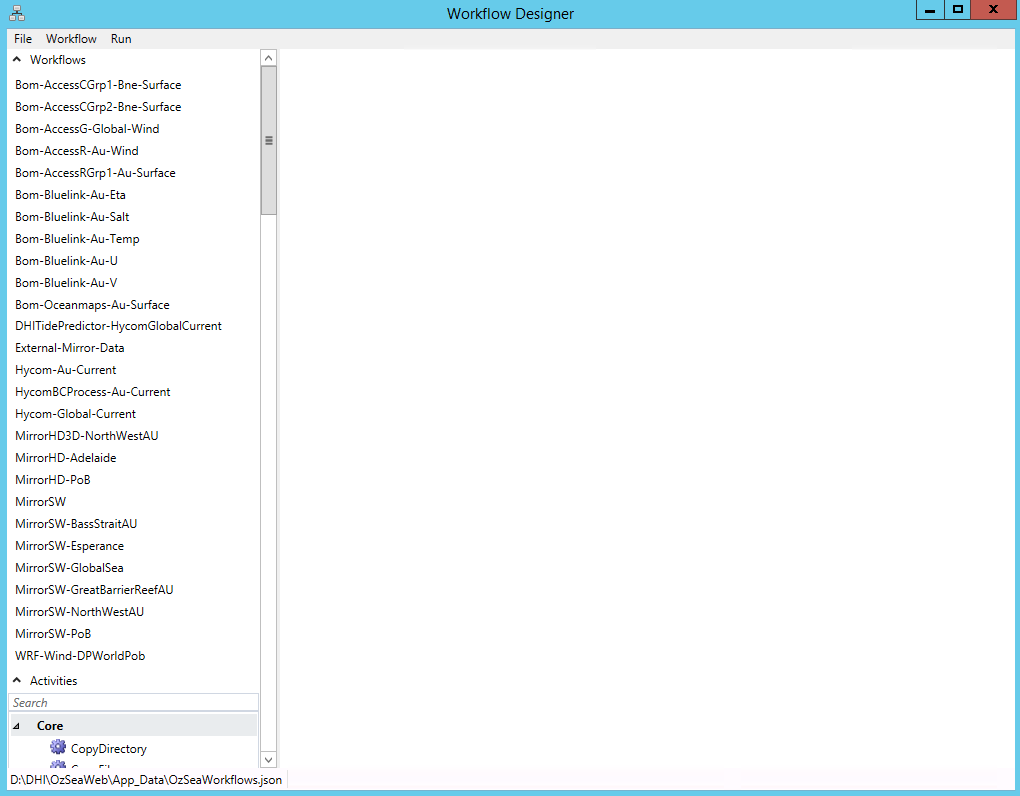
From the designer menu, a new repository can be created or an existing can be opened from the File menu. Once opened, the list in the left hand side will display the workflows as shown in the figure below
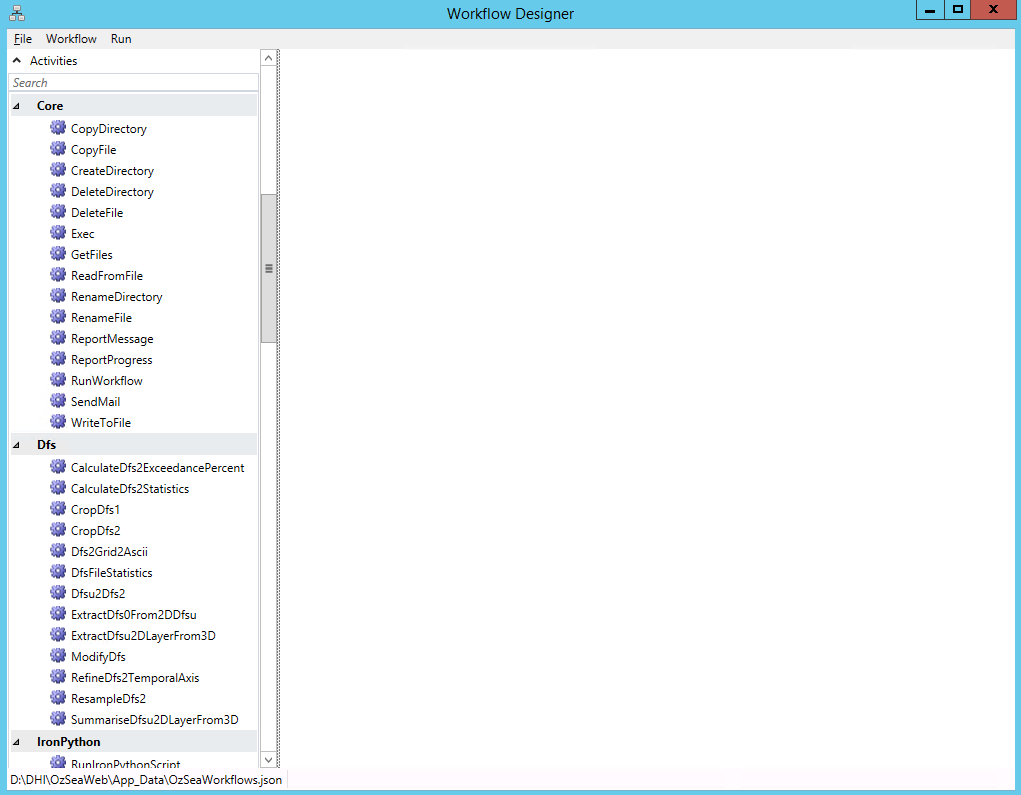
Below the list of workflows are the Code Activities as shown in below figure. The code activities are grouped according to the assemblies they sit in. As such, all assemblies with code activities are called DHI.Workflow.Activities.*.dll and in below figure the CodeActivities residing in DHI.Workflow.Activities.Core.dll, DHI.Workflow.Activities.Dfs.dll and DHI.Workflow.Activities.IronPython.dll. These assemblies are loaded using .NET reflection so which means adding a new assembly with code activities automatically registers it in the designer if the assembly follows the naming convention.
Under the Workflow menu, it is possible to add, remove and save workflows as well as import and export the workflows as XAML. Please note that when doing this the Parameters are not exported.
Once a workflow is selected from the left hand side, then the designer window is populated with workflow as shown below
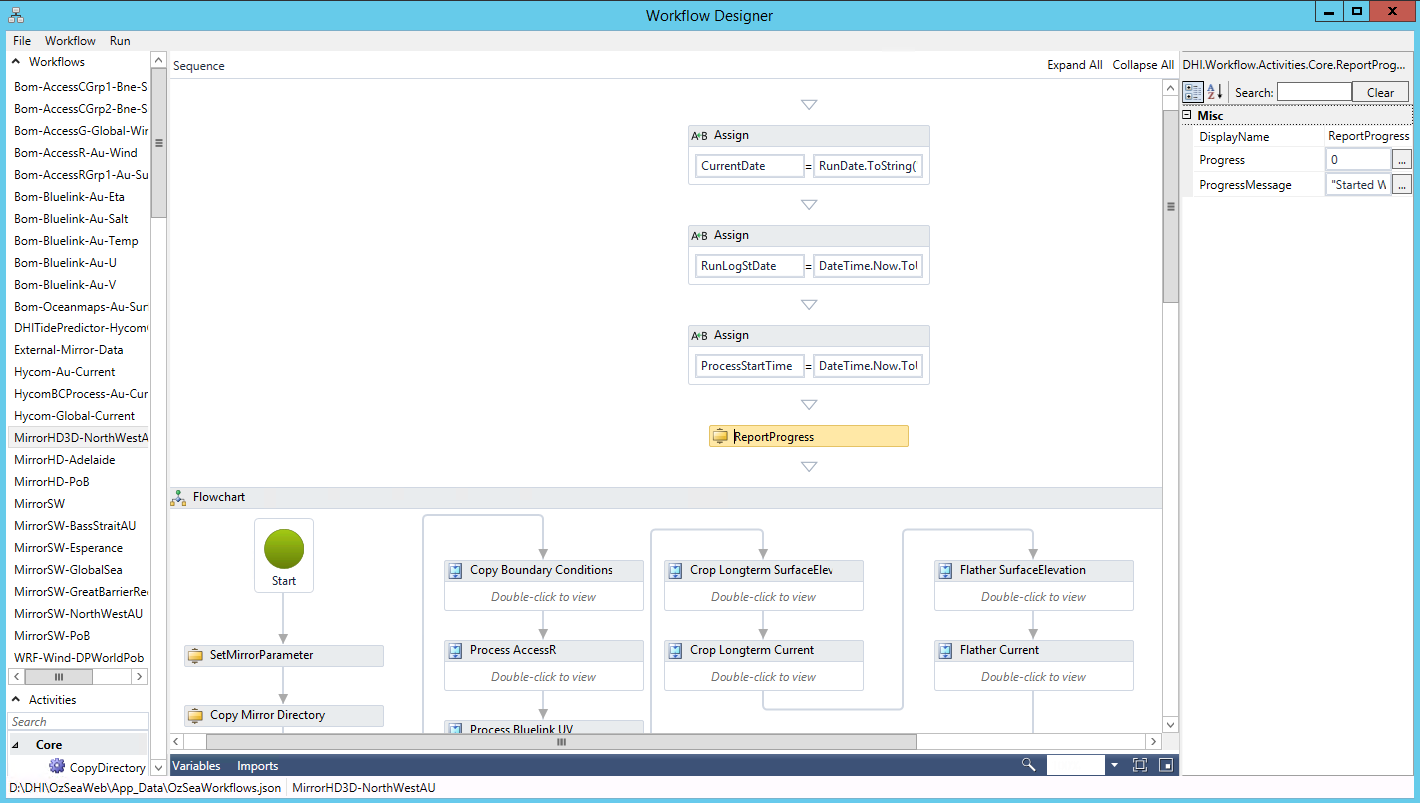
A sequence can contain sequences or flowcharts, which then in turn can contain sequences. These can be collapse giving better overview of the entire structure. Adding a new CodeActivity to the flowchart or sequence is a matter of dragging it from the list of activities to the location and wiring it up in the context. Configuring the CodeActivitiy is done by selecting it, which populates the property grid in the right hand side with the properties exposed by the CodeActivity. The majority of all properties takes VB.NET expressions, which allows doing simple manipulation of input or output from a code Activity. An example of this is when an argument is a list of strings. In this case that would translate into "New List(Of String)({"somestring"})".
The workflow has the concept of global variables as shown in the figure below. For a variable to be used in the workflow, it needs to be defined here. It can then act as both input and output to CodeActivities. When executing the workflow, these variables are identical to the parameters in the task repository and are available to be set from outside e.g. through the Web API when executing the workflow. In that case the default parameter set on the variables in the workflow are overridden by the parameters set from outside.
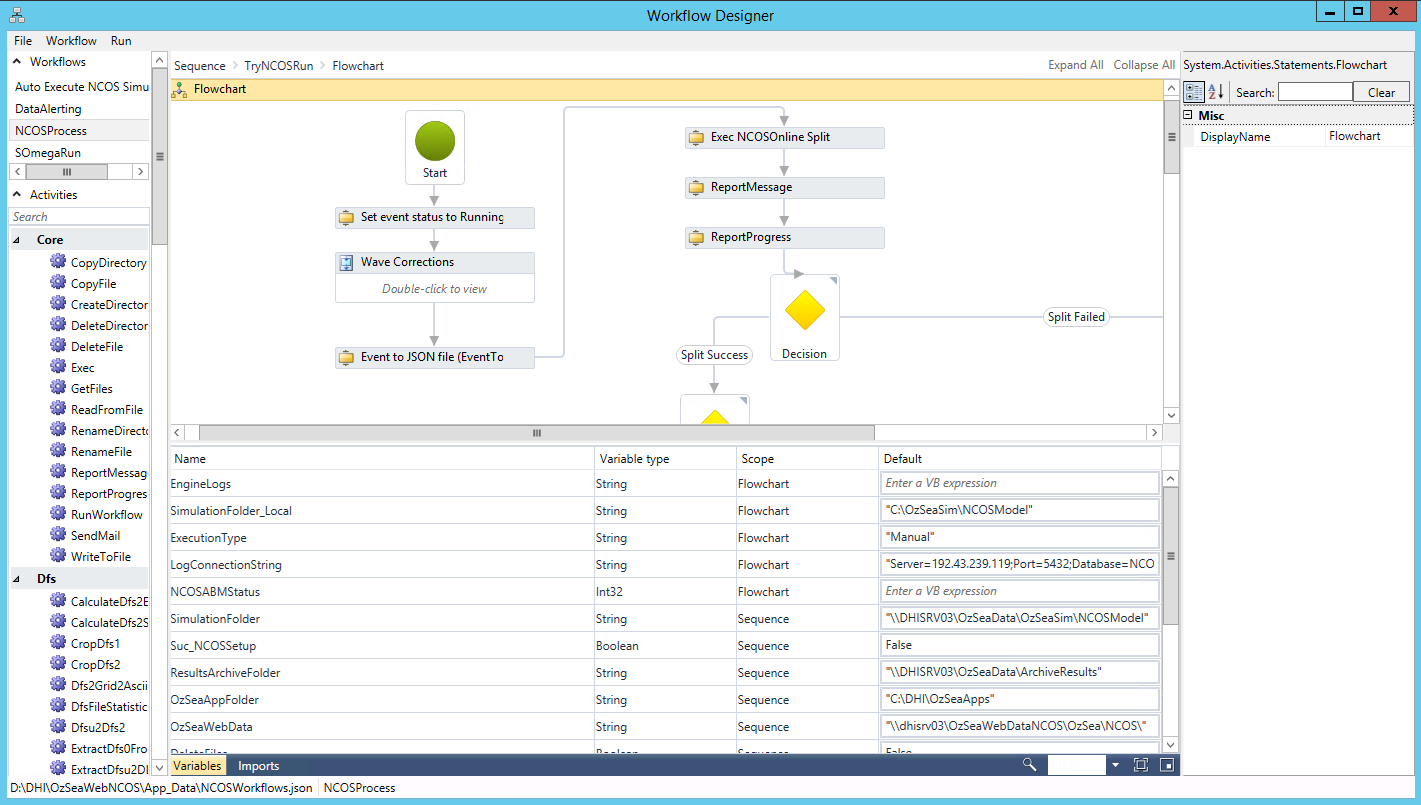
Variables defined on the workflow are exposed as Parameters on a Domain Services tasks and can be modified from e.g. the web api. Besides setting the variables in the workflow, the [env:MyEnvVar] aproach is used to look up e.g. MyEnvVar, from the environment variables and finally if a file VariablesOverride.json exists next to the DHI.WorkflowDesigner.exe or DHI.Workflow.Service.Engine.exe and it contains a dictionary, then any entry there with the key matching a parameter name in the workflow will be used instead of the value in the workflow
The designer allows for execution of workflows through the Run menu, which is useful during construction of workflows. A workflow can be executed in two modes either locally which means the designer will execute the workflow in-process, or remotely which means a host executes it. If remote executing a workflow, this is not using the Job Runner and will as such bypass any queuing that may be in place. It will contact the Workflow Service on the host directly. These two modes of execution correspond to Use Case 4 and 5.
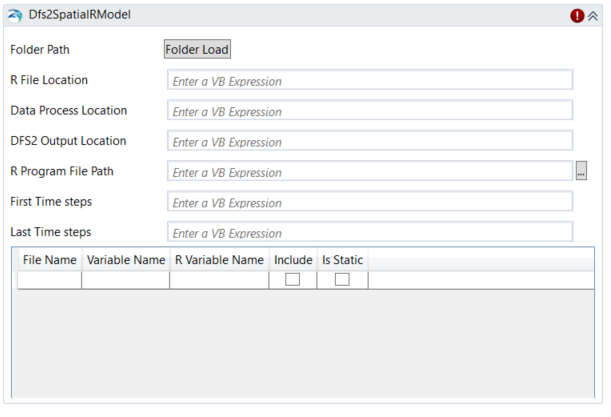
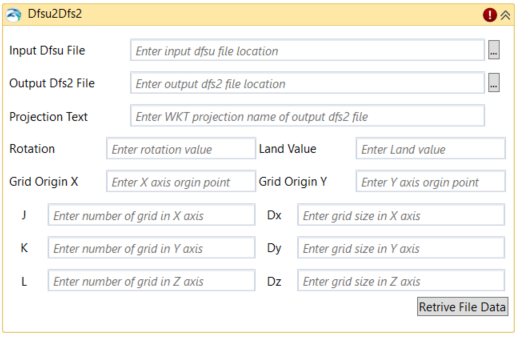
Certain CodeActivities have Designers defined, which provides a richer UI for editing properties through drop down boxes, check boxes, and file dialogs. These designers are based on Windows Presentation Foundation (WPF). Below figures show an example of such user interfaces for the Dfs2SpatialRModel and Dfsu2Dfs2 CodeActivitites
Windows Task Scheduler
For executing workflows in Use Case 2 and 3, the Workflow Executer is used. The Workflow Executer can run in either local mode or remote mode. The former causes immediate in process execution and is often used for time critical execution of workflows. The latter option performs a Web API request to a web server placing the workflow in a job queue. The arguments for the WorkflowExecuter can be recalled by running the application without any arguments as shown in the figure below
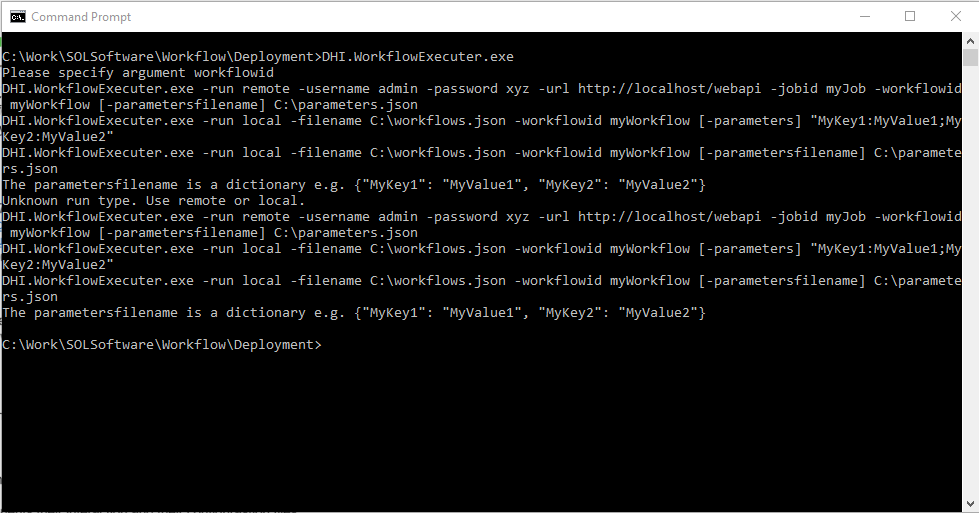
The main difference in the arguments for the two modes indicated by the -run argument is that run local points to a workflow repository on disk whereas run remote points to a web server.
When executing workflows via Windows Task Scheduler, use DHI.WorkflowExecuter.exe. The following arguments are a basic starting point that you can modify to suit your project requirements:
Program: [full path to DHI.WorkflowExecuter.exe] Arguments: -run local -filename [full path to workflow.json file] -workflowid "[name of workflow]" Start in: [leave blank]
An example of this is:
Program: C:\tools\DHI.WorkflowService.Deploy\DHI.WorkflowExecuter.exe
Arguments: -run local -filename C:\tools\DHI.WebAPI\App_Data\workflows.json -workflowid "Realtime import"
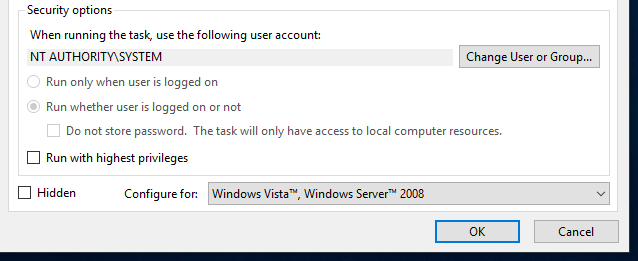
For the scheduled task Windows User Account, you can either specify the account that you are logged in as, or you can use the local SYSTEM account. Using the SYSTEM account has the advantage that when your Windows Domain Account is one day deleted (eg: your contract with the client ends), the task will continue to execute. When using the SYSTEM account, you do not need to check 'Run with highest privileges' for the task to execute successfully. Note that the 'Run whether user is logged in or not' is automatically selected after saving the task - you cannot select it yourself.