Model Execution
Model execution in workflow
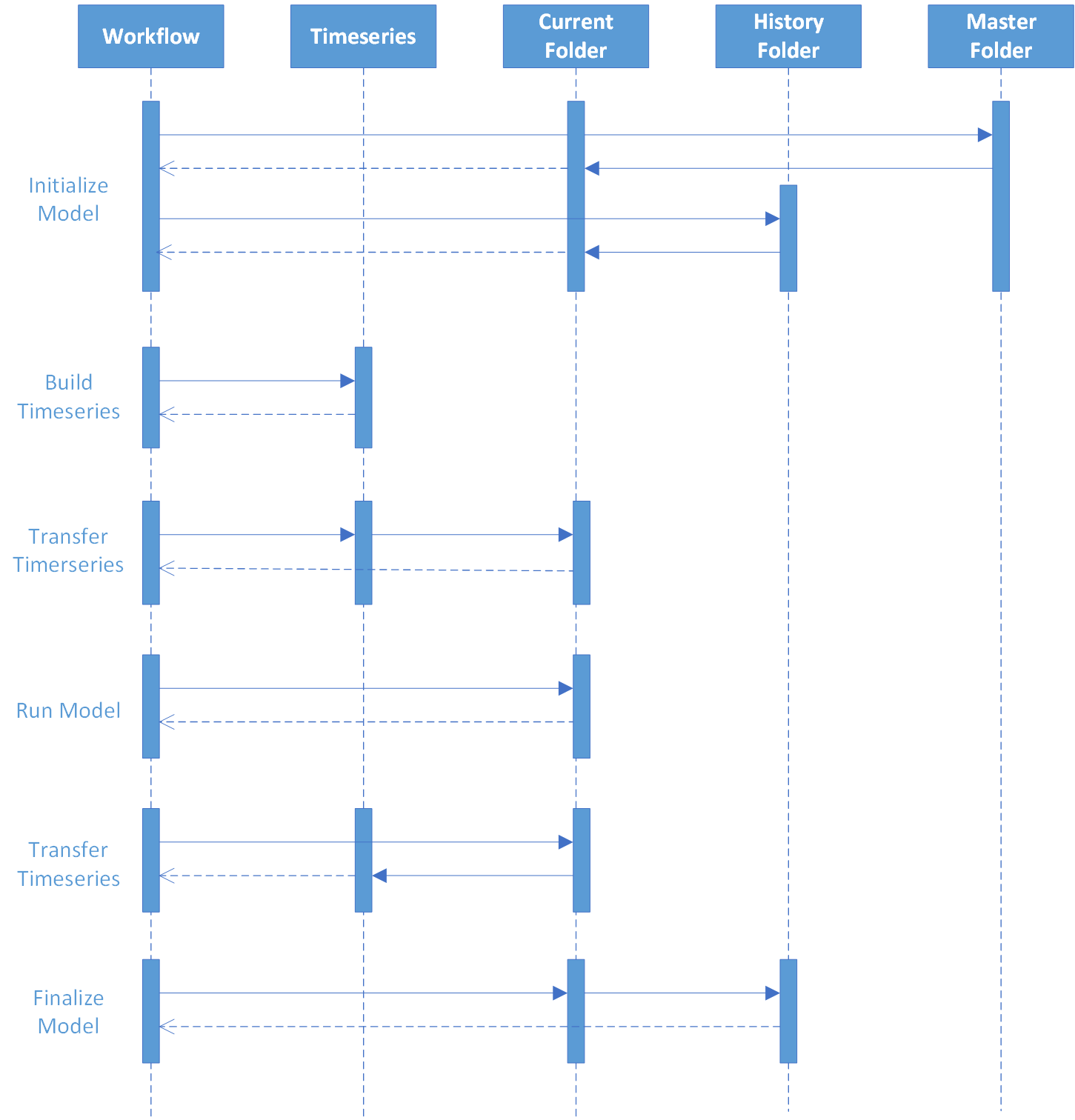
There are several building blocks or actions in Workflow that allow model execution. The typically used actions are InitializeModel, RunModel and FinalizeModel for the model handling as well as BuildTimeseries and TransferTimeseries for time series handling. Their typial use is shown in the figure below
Initialize Model
The three model actions works with the concept of a Current, Master and History folder. The model runs out of the current folder which has been populated with a copy of the Master folder and hotstart files from the History folder. The majority of this is taken care of by the InitializeModel activity. It is capable of handling multiple models in one execution and in one Current folder, which is expressed through the properties of type lists. The activity takes a list of model types, e.g. MIKE21FM and MIKE11, simulation files, e.g. sim11, as well as lists of start and end times. This information is used to modify simulation files once a Current folder has been established based on a Master folder. All simulation files listed will be modified with start and end times.
For hotstarting, the latest folder with results from a previous run is identified in the History folder and the list of files defined in ResultElements are copied from the folder in the History folder to the corresponding file listed in HoststartElements in the Current folder. This allows a result file from a previous execution being used as hotstart files in a new execution. All files are relative to respectively the Current folder or the identified folder in the History folder
Build Timeseries
Once the Current folder is prepared, the model is ready to be run, but in most cases boundary conditions must be prepared for the model. This is done by two code actions, BuildTimeseries and TransferTimeseries. In most cases the time series that are used as boundary conditions are complex and requires manipulation to stitch them together from different sources, gap fill or extend them on case the time series data does not cover what’s needed. This is done by the BuildTimeseries activity.
The definition of what needs to be done to build the times series is defined in a spreadsheet. Each row in the spreadsheet defines a resulting time series and is specified by its Domain Services respository, connection string and id. Besides this, pairs of a time series and corresponding methods to be used on this time series are specified. There are many methods that can be defined to act on a time series, e.g. ExtendLast(time), which extends the last value in a time series to the time defined through the argument. Once all methods have been executed on a time series the result is added to the final time series for this row and the next pair of methods and time series are processed which in return is also added to the final timeseries. This allows for complex construction of time series from different sources. The process will continue until rows have been processed and all time series have been generated in the time series repository thereby preparing all model time series.
Transfer Timeseries, pushing boundary conditions
The time series are now transferred to the boundary condition files using the TransferTimeseries activity. In the same way as the BuildTimeseries activity, it refers to time series by defining the Domain Services repository to use, e.g the MCLite repository if data is stored in MIKE OPERATIONS, the connection string and the id. This is repeated for the source in the first three columns in a spreadsheet and the next three columns defining the destination. Destination will often be the Dfs0 time series repository in e.g. the MIKECore provider when running MIKE models.
Additional Action
ModifyModelFiles: This allows for comprehensive modification of model pfs files through configuration in a spreadsheet. It is typically used in connection with scenario execution where the scenario exists as json that is imported in the spreadsheet and subsequently used in the spreadsheet to make decisions on what needs to be modified in pfs files. This allows for full flexibility
Run Model
When the boundary conditions have been created the model can be run using RunModel, which takes the simulation file and the model type. If the latter is not specified, it will be guessed. In some cases there are model files that needs manipulation. An example is the initial level in a reservoir in a MIKE HYDRO BASIN model. For doing custom modifications of model files, the ModifyPfsFile ativity is useful and if the data to be written into the pfs file comes from a time series, then ReadTimeseries allows extracting a times series from which e.g. the last value can be extracted. Finally RunModel is run, which eventually produces model results
Transfer Timeseries, pulling in results
The use of model results varies. Often time series results are needed and for this the TransferTimeseries activity is used again, this time with the sources columns pointing to the result files of the model execution. There are many examples of extracting result time series varying from Dfsu files where coordinates, item and potentially layer number are specified, to dfs0 files where item names are specified as well as res1d files where an id constituting with various parameters are specified. The time series data is copied to any repository specified that allows saving time series data throgh a Domain Services repository.
Additional Action
ValidateTimeseries: This allows for comprehensive validation and alerting based on time series. The rules are configured in a spreadsheet or similar
Finalize Model
Finally the FinalizeModel code activity is run to archive the Current folder in the History folder. The naming of the folder includes start time to end time which allows the InitializeModel code activity to identify the correct folder for the subsequent runs. In case the simulation failed and this is passed in, FinalizeModel will annotate this folder with failed alowing for easy inspection of the model. The number of historical folders can also be specified
Results
Result dissemination is again based on Domain Services both for time series data which is easily served from a Domain Services times series repository from e.g. MIKE Cloud or MIKE OPERATIONS. In other cases results in the form of dfsu or dfs2 files are displayed directly on a map by consuming the Domain Services Map Service to deliver WMS data. All data is easily linked up usng e.g. react-components that has native knowledge of the Domain Services WebApi