Tutorial IFM
Using Plug-ins
To show the capabilities of plug-ins in FEFLOW, we attach and use the Check Mesh Properties plug-in, which is part of the FEFLOW installation. The plug-in calculates the occurring minimum and maximum angle of each finite element of a 2D mesh to check the mesh quality.
Start a new FEFLOW document and create an arbitrary supermesh polygon using the Add Polygons tool. When the polygon is finished, click Generate Mesh to generate a finite-element mesh.
Open the Plug-ins panel via View > Panels. In the list of available plug-ins, right click on Check Mesh Properties and choose Attach from the context menu. The plug-in will now appear in the list of attached plug-ins.
When the Check Mesh Properties plug-in is attached, it creates two reference distributions MeshProperties:MaxAngle and MeshProperties:MinAngle in the Data panel and two additional charts are displayed.
Double-click on one of these reference distributions to visualize the angles in the active view.
Whenever the mesh is changed (e.g., when applying Smooth Mesh in the Mesh-Geometry toolbar), the values in the reference distribution are updated.
If a mesh contains a large number of elements, the computation time for the updating process may become unacceptably long. In this case, the plug-in can be temporarily disabled by removing its checkmark in the Plug-ins panel.
Programming Plug-ins
The widely used Microsoft Visual Studio development environment has been found suitable for the development of plug-ins. The basic version, Visual Studio Express, is available free of charge (http://www.microsoft.com/express/). For Visual Studio 2012 and 2013, the Express version for Windows Desktop (Express for Windows is not sufficient) needs to be installed.
The following example is based on Microsoft Visual Studio 2010 Standard/Professional Edition. The approach differs slightly from other versions of Microsoft Visual Studio and the free Microsoft Visual Studio 2010 Express Edition.
Before starting the plug-in development, the following items have to be installed:
-
Microsoft Visual Studio Standard/Professional or Microsoft Visual Studio Express Edition with C++ support
-
FEFLOW IFM SDK (the respective package in the FEFLOW setup has to be selected)
Note
Microsoft Visual Studio has to be installed prior to the IFM SDK to allow the installation of the template.
Starting the IFM Wizard
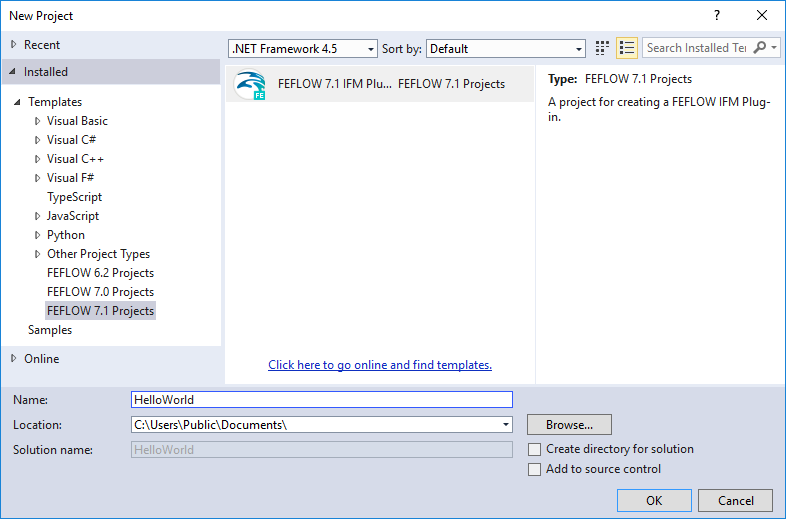
To start with a new plug-in, open Visual Studio 2010 and choose New > Project from the File menu.
In the tree on the left side of the dialog, click on 7.1 Projects. Next, click on the 7.1 IFM Plug-in template. Remove the Create directory for solution check mark at the bottom of the window. After entering the name (HelloWorld) and the target location for the new plug-in, click OK to proceed.
Initial Plug-In Settings
On the Welcome page, click Next.
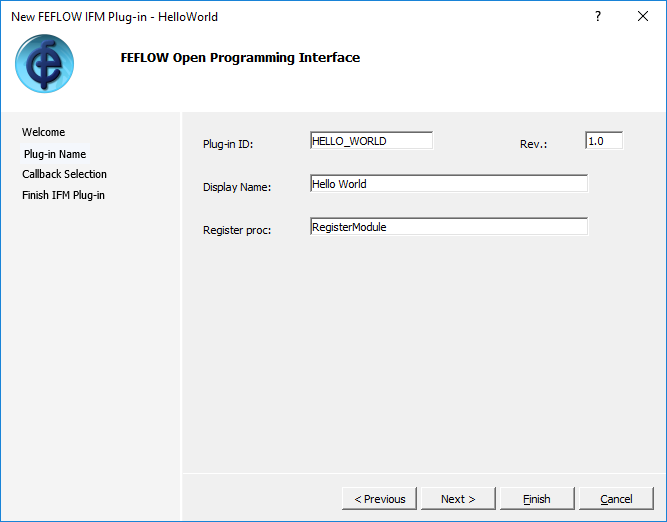
The following Plug-in Name page asks for a plug-in ID (which is its unique identifier), its display name (the name to be shown in FEFLOW) and the plug-in version number.
By default, Plug-In ID and Display Name are set according to the project name given before. We accept the default. The value of the Register Proc field should not be modified.
Clicking Next leads to the Callback Selection page. Place the mouse cursor over a callback to get detailed information in a tool tip window. Activate the callback OnEditDocument.
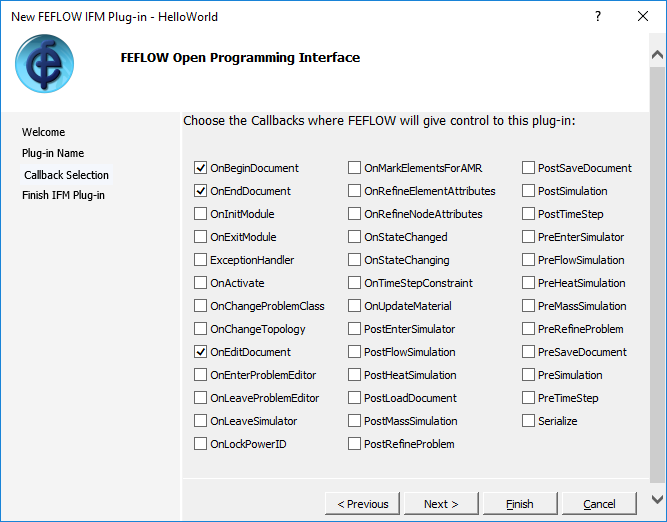
Click on Finish to start the generation of the plug-in frame code and of the Visual Studio files.
Implementing the Functionality
With a double-click, open the primary source code file HelloWorld.cpp from the tree in the Solution Explorer panel. Scroll down to
// Callbacks

void CHelloWorld::OnEditDocument...
and replace the lines
/*

   * TODO: Add your own code here...

*/
IfmInfo(pDoc,”Hello World!”);
void CHelloWorld::OnEditDocument (IfmDocument pDoc, Widget wParent)
{
    IfmInfo(pDoc, "Hello World!");
}
Compiling and Debugging
Build the plug-in by pressing
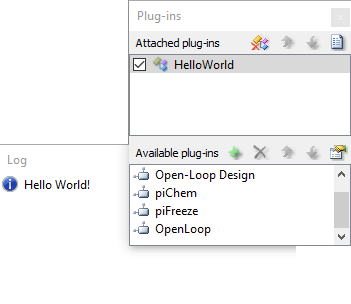
Load an arbitrary FEFLOW model, attach the plug-in and click Edit plug-in properties in the Plug-ins panel. The message “Hello World” appears in the Log panel.
Compiling release and x64 versions
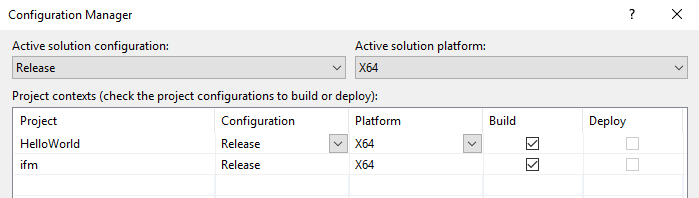
By default, a debug dynamic link library is compiled, which allows debugging (e.g., using breakpoints in the plug-in code) but has reduced performance. To build a more efficient release version, change the Configuration as shown below. In case that FEFLOW is still open, make sure to close it in order to return to Visual Studio.
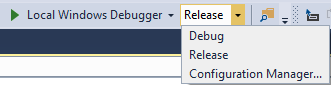
In the same way the platform can be changed to x64, providing the means to build plug-ins suitable for the 64-bit version of FEFLOW.